
How do I disable those "annoying" admin notifications in WordPress?
Do you have a lot of plugins installed? Do you get too many notifications on your WordPress dashboard? Do you have dozens of admin warning messages in WordPress that prevent you from clearly seeing important information?
By default, WordPress displays some notifications on the home page of your Dashboard. These notifications may prompt you to update or activate certain plugins. Sometimes, they may ask you to purchase a license to receive support from a theme or plugin developer, or simply to leave a rating for the latest plugin you activated a couple of minutes ago.
If you work for clients, this will give a very poor impression of your work, and your site will appear incomplete or buggy because of all the warning messages.
Well, in this article, we're going to learn how to remove all admin notifications in WordPress using a simple, free plugin that's very easy to set up.
How do I hide admin notifications in WordPress?
As you probably know, WordPress is a flexible CMS. You can add or remove features by installing or uninstalling plugins. There are thousands and thousands of plugins that can add different features to your website.
The “Disable Admin Notices Individually”You can get rid of all those annoying admin notifications in WordPress with just one click.".
We're all tired of the notifications that appear on the WordPress dashboard pages. With this plugin, you can disable notifications permanently or on a case-by-case basis! This works for notifications from plugins and from WordPress itself.
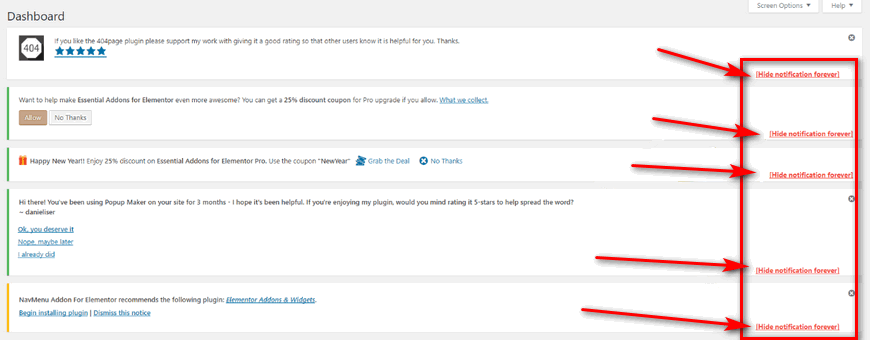
This plugin adds a small "Hide notification forever" link below each notification in the Dashboard. When you click this link, you'll never see the notification again. You can use this method to disable only the annoying notifications that keep appearing on pages and allow WordPress to continue displaying important notifications, such as updates.
In addition, in the plugin settings, you can completely disable all notifications sitewide. In this case, the plugin removes WordPress admin notifications while retaining important update notifications.
There is also a special section in the top admin bar that collects all notifications in one place. By default, this feature is disabled in WordPress. However, you can enable it through the plugin settings.
All you have to do is download the plugin from the official WordPress website or directly from the WordPress Dashboard. Install it, activate it, and you're all set!
To disable WordPress admin notifications, follow these steps:
- Log in to the WordPress dashboard.
- Go to Settings and click "Hide Admin Notifications Plugin.".
- On the "Hide Administrator Notifications" tab, you have three options: All notifications, Selected only, and Do not hide.
Also, if you encounter any problems, you can submit a ticket and ask the developers for help.
How do I hide admin notices in WordPress using code?
If you have some programming knowledge and don't want to install any additional plugins in WordPress, we recommend that you follow this method.
As always, we recommend taking a full backup of your WordPress site and then following the steps below.
Simply use the following code snippet. You can add it anywhere in your theme's functions.php file or in WordPress's wp-config.php file.
You can access both directly through your web hosting control panel (cPanel) or using an FTP client.
Using any of these methods, add the following code:
add_action('admin_enqueue_scripts', 'ds_admin_theme_style');
add_action('login_enqueue_scripts', 'ds_admin_theme_style');
function ds_admin_theme_style() {
  if (!current_user_can( 'manage_options' )) {
    echo '.update-nag, .updated, .error, .is-dismissible { display: none; }';
	}
}
This code will remove all administrator notifications in WordPress.
We hope this article helps you improve your WordPress experience and, above all, if you develop websites for your clients, that you can provide them with a site that looks much better.
See you next time!
Si quieres conocer otros artículos parecidos a ¿Cómo deshabilitar los "molestos" avisos del administrador en WordPress? puedes visitar la categoría Ayuda y Soporte.
 Español Español
  English
  Português do Brasil
Leave a Reply