
LearnDash: The Best WordPress Plugin for Online Education

Do you want to create your own online courses? Do you need to teach your classes online? Do you have to conduct remote training sessions? Then you’re very close to creating an e-learning experience—and that’s probably where you’ve heard of LearnDash.
LearnDash It is a WordPress plugin designed exclusively for creating online education websites. This easy-to-install plugin makes it very simple to create a professional online academy capable of satisfying even the most demanding users. It is one of the most popular learning management systems (LMS) on the web.
In this article, we’ll take a detailed look at the key features LearnDash offers and also walk you through its essential functions, so you can get your project up and running quickly and successfully. We’ll also show you how to install it on your WordPress website so you can create, market, and sell your own online courses. Shall we get started?
- What is LearnDash, and who is it for?
- What are the main features of LearnDash?
- How do I get started with LearnDash?
- How do I provide a URL for a course in LearnDash?
- How do I create LearnDash lessons?
- How do I add a quiz to LearnDash?
- How do I set up payments for LearnDash?
- What are its featured add-ons?
What is LearnDash, and who is it for?
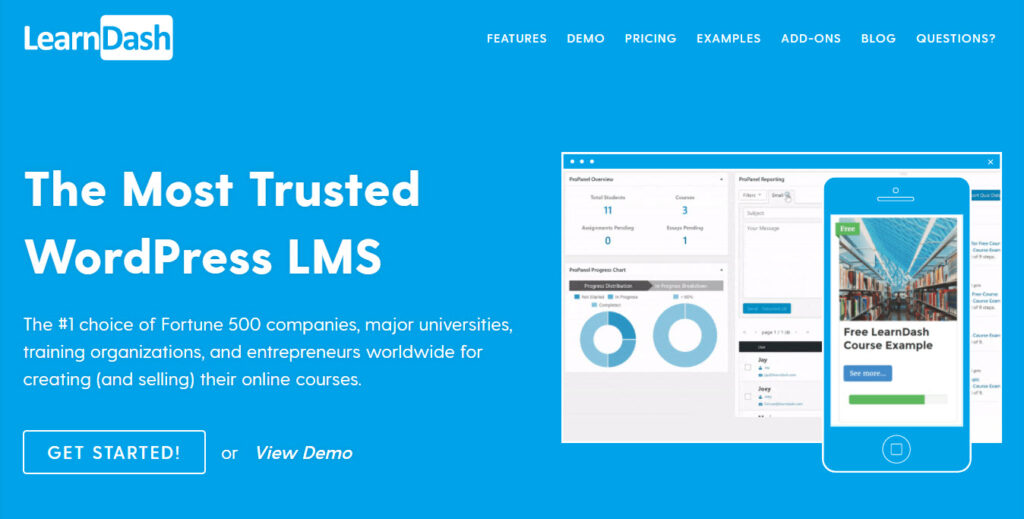
LearnDash It is a premium WordPress LMS plugin that works with any WordPress theme, as well as with multisite installations. Its responsive courses can be configured in different styles using a wide variety of tools. This ensures that every course is dynamic and engaging, and that learning remains fun.
Broadly speaking, one could say that LearnDash It's for anyone looking to turn their website into a learning management system. It's ideal for educational institutions, companies focused on training, or WordPress developers with clients who need online courses; it's extremely feature-rich and meets a variety of LMS needs.
What are the main features of LearnDash?
- Create Courses
LearnDash It lets you create an unlimited number of courses. It offers a wide range of options to choose from, making it easy for you to design courses that incorporate a variety of assignments and learning styles.
This includes creating courses at various levels, organizing learning into a selection of lessons, topics, and categories, as well as using any type of media—such as video, audio, and more. Similarly, you can add quizzes, gradebooks, lesson timers, forums, content released on a schedule, and much more.
It also offers the option of issuing certificates to students who complete the course. - Course Sales
LearnDash makes selling courses extremely easy. You can set your own prices for each course, establish your payment schedule, and sell directly from your website. Add a shopping cart to your site and choose from a wide variety of payment gateways.
You'll then be able to charge a one-time fee for a course, offer a recurring subscription, create membership plans, sell courses in bundles, and more. - Administration Panel
LearnDash It gives you complete control over your courses and students, ensuring that managing your LMS is an easy and efficient process. It also allows students to create an online profile and track their own learning on the front end.
In addition, you can send automatic email notifications to help increase user engagement, place people in groups and allow others to manage them, and more.
- Add Extensions
In addition to the key features it offers LearnDash, you can also install additional extensions to add advanced functionality to your LMS. The plugin offers a range of incredible free, premium, and third-party add-ons, including WooCommerce integration, BuddyPress y MemberPress.
As you can see, LearnDash has a lot to offer and is an impressive tool. Next, we'll look at how to use it to create a basic course, so you can understand how it works and get started with your educational platform.
🚀 Eduma: The ultimate WordPress theme for educational sites
How do I get started with LearnDash?
Install LearnDash It's a quick and easy process. Go to LearnDash, download it and upload it to your WordPress site. You'll immediately see that a "LearnDash LMS" menu has been added to the WordPress menu.
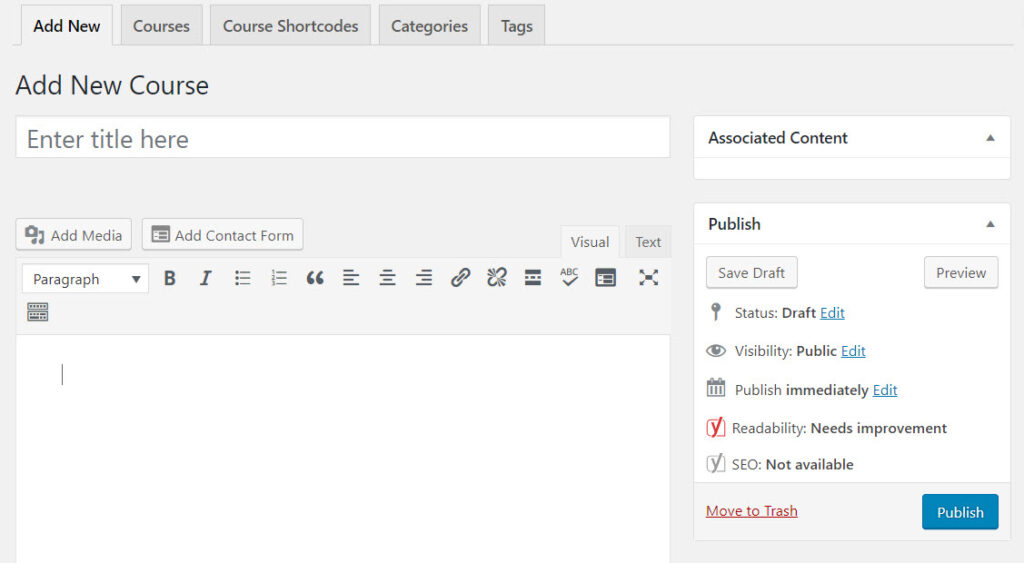
To add a new online course, select LearnDash LMS > Courses > Add New in your WordPress menu.
To get started, add a title to the course, and then you can enter some basic introductory text in the WordPress post editor. You also have the option to add a featured image for the course. To do this, upload an image under "Featured Image.".
How do I provide a URL for a course in LearnDash?
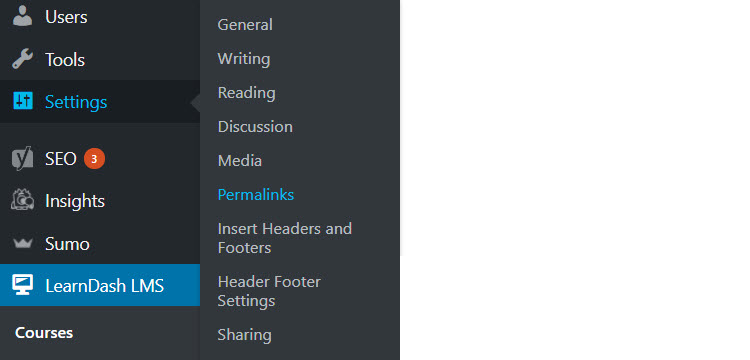
To change the course URL—to make it easier for your students to remember—click Settings > Permalinks in your WordPress menu. Then select Publish name > Save changes. If you return to the home page, you'll see that your course's URL is now named correctly.
How do I set up the course?
You can customize your course settings on the course page. This includes options to add course materials, set a price, manage lessons, select course prerequisites, add a course certificate, and more.
To create a paid course, scroll down to the "Course" section and select the course pricing type. The available options include:
- Open: available to everyone.
- Free: Free, but users must register.
- Shop Now: a paid course.
- Recurring: a recurring payment to access the course.
Once you've chosen a paid plan, you'll need to set a price and create a billing cycle, if applicable.
Finally, at the top of the page, you'll find the tab Shortcode for the course. Here is a list of shortcodes you can use to add relevant additional information to your courses, lessons, or quizzes.
Once you've finished adding content and selecting your settings, you can publish your course.
How do I create LearnDash lessons?
It's important for you to know that in every online course taken through LearnDash The content can be accessed in small chunks, which undoubtedly ensures that participants do not lose interest or feel overwhelmed by the large amount of information provided.
To create the first lesson of your course, select LearnDash LMS > Lessons > Add New. Give your lesson a title and add the content you want to include. Here, you can also upload any media you need, or if you want to embed a YouTube video, copy the URL and paste it into the post editor in the appropriate place.
How do I set up a lesson in LearnDash?
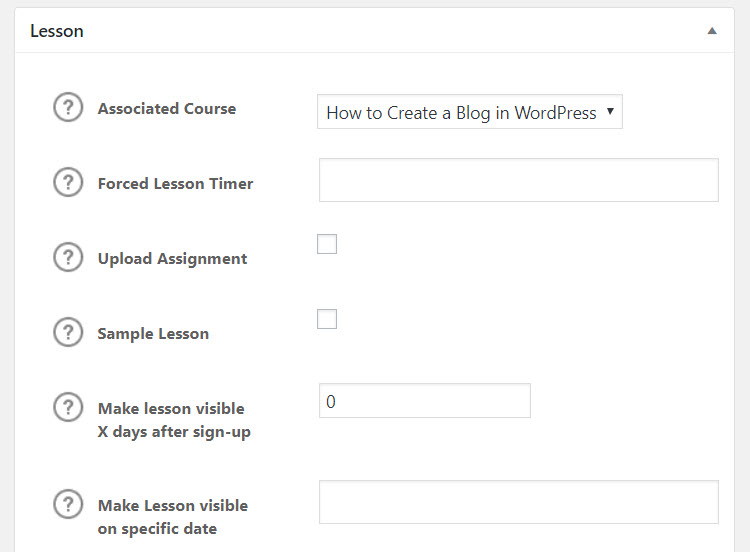
To set up your lesson, scroll down the page Lesson This will allow you to see several interesting points in this section. Here, you must select the course associated with the lesson.
You can then choose to add a lesson timer or require students to submit an assignment as part of the lesson.
You can also choose to release the content gradually, making it available on a specific date or after a certain period of time has elapsed from the moment a user enrolls in the course.
How do I add a quiz to LearnDash?
Adding a test to a course is an effective way to help your students reinforce their knowledge. To create a test, select LearnDash LMS > Quizzes > Add New. If you'd like, you can add a title and an introduction to your questionnaire.
How do I set up the questionnaire?
Just like in the previous step, scroll down the page to the section Test Then, link your new quiz to the appropriate course and lesson. There are many options to choose from, including adding a timer to your test, enabling automatic start as soon as the test page loads, displaying a leaderboard so students can compare their scores, and setting up automatic email notifications to inform users of their results, among many others.
How do I set up payments for LearnDash?
Once you've finished creating a course, you'll need to set up an online payment system on your website. This will allow students to quickly purchase the course and start using it.
LearnDash It comes with PayPal integration that's ready to use. But you also have the option to install one of the many extensions from LearnDash to add more payment methods, including Stripe, 2Checkout, Zapier, and more—all for free.
To set up a payment gateway with PayPal, simply select LearnDash LMS > Settings in your WordPress menu. Then fill out the "PayPal Settings". Once verified through PayPal, your site will be set up to sell your courses.
What are its featured add-ons?
There are a lot of very interesting add-ons and extensions to complement your courses, and that's one of the most interesting features it offers LeanDash. Below is a complete list. Click on the links to learn more about their features.
- LearnDash MailChimp
- Restrict Content Pro for LearnDash
- LearnDash Notifications
- LearnDash Course Grid
- LearnDash Notes | Snap Orbital
- Gravity Forms for LearnDash
- Event Espresso for LearnDash
- 2Checkout for LearnDash
- Design Upgrade Pro for LearnDash
- LearnDash Gradebook
As you can see, this is one of the best and most comprehensive options for creating online courses; it's very easy to set up, has a user-friendly interface for students, and offers a wide range of integrations with plugins and add-ons.
Also, keep in mind that on our website you can access a wide variety of Educational Themes and Plugins, here are just a few:
- Sensei WordPress Learning Management System
- Learn – Education, eLearning WordPress Theme
- Eduma – Education WordPress Theme
- Education WordPress Theme
If you'd like to learn more about these products, feel free to let us know, and we'll write a new post for you.
Have you made up your mind yet? Are you ready to start your academy? Good news! At Pillbanana, we offer you LearnDash At a super affordable price and with all its features intact, get it right now for just $4.99 and achieve incredible results with minimal effort.
Just install it and enjoy a genuine product at the lowest price, with free updates for one year.
Si quieres conocer otros artículos parecidos a LearnDash: el mejor plugin de WordPress para educación en línea puedes visitar la categoría Plugins Wordpress.
 Español Español
  English
  Português do Brasil
Leave a Reply