
Customize functions.php WordPress file | 20+ Tips [updated].

Here are the best tricks to customize your WordPress functions.php, to define the characteristics and functions of the topics.
All WordPress themes come with a default function.php file. This file is a type of plugin that allows you to do many interesting things on your WordPress site.
We are going to share some of the best tricks to customize your WordPress functions.php. This file allows theme developers to define its features and functions.
functions.php WordPress is used as a plugin for WordPress and is ideal for adding your custom code snippets to WordPress.
Where is WordPress php functions?
The location of the functions.php file is in your theme folder.
If you want to incorporate a code snippet into your WordPress site, adding it to the functions.php file is an option.
We recommend using a child theme instead of editing your site files directly.
Another option to access the functions.php file is through the WordPress administration interface.
What is the difference between a specific WordPress plugin and a WordPress functions.php file?
Surely a site-specific plugin is faster and more convenient than the WordPress functions php file. However, we can say that as the functions.php WordPress does not depend on your WordPress theme, it will work with any theme.
However, there are certain function php files of certain themes, which only work with that theme. In that case, you will have to copy and paste the custom codes into your new theme.
Preliminary considerations
It is important to keep in mind that if you decide to edit your functions.php file, you must be very cautious and careful, as making coding mistakes in the functions file can crash your site.
Making a coding error in your functions.php file can also lead to other WordPress errors.
Remember that it is advisable to edit a functions.php file if you have a child theme and use the code snippets only with the active child theme.
For example, you may want to include snippets for custom fonts, style sheets or add a language translation file specifically for that particular child theme.
Now, with these considerations in mind, here are some tips about the WordPress functions.php file.
Tricks for WordPress functions.php:
Remove WordPress version number
It is a good idea to use the most recent version of WordPress. You may want to remove the WordPress version number from your site. Add this code snippet in your WordPress functions or functions.php file:
function wpb_remove_version() {
return \'\';
}
add_filter(\'the_generator\', \'wpb_remove_version\');
Add your own logo to your Wordpress
White label WordPress admin area. First you need to add your logo. Upload your logo to the theme file folder as custom-logo.png. Your custom logo should measure 16x16 pixels. This code can be added to your theme's functions file or WordPress functions.php.
function wpb_custom_logo() {
echo \'
<style type=\"text/css\">
#wpadminbar #wp-admin-bar-wp-logo > .ab-item .ab-icon:before {
background-image: url(\' . get_bloginfo(\'stylesheet_directory\') . \'/images/custom-logo.png) !important;
background-position: 0 0;
color:rgba(0, 0, 0, 0);
}
#wpadminbar #wp-admin-bar-wp-logo.hover > .ab-item .ab-icon {
background-position: 0 0;
}
</style>
\';
}
//hook into the administrative header output
add_action(\'wp_before_admin_bar_render\', \'wpb_custom_logo\');
WordPress administration panel: Modify the footer
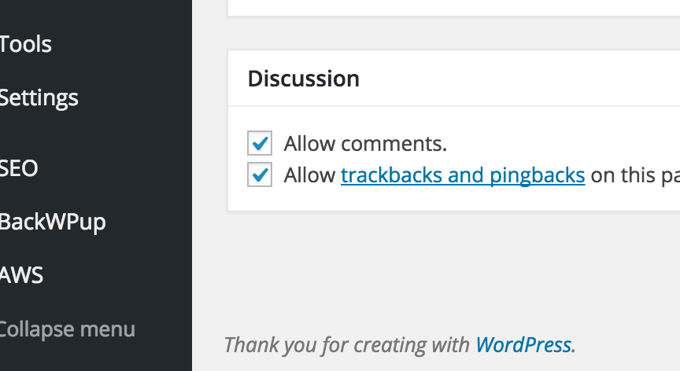
The footer of the WordPress administration area displays "Thank you for using WordPress". You can change the message using this code.
function remove_footer_admin () {

echo \'Fueled by <a href="/en/"http:>WordPress</a>
 | WP Tutorials: <a href="/en/"https:>WP</a></p>\';

}

add_filter(\'admin_footer_text', \'remove_footer_admin');
Adding custom widgets in the WordPress dashboard
Chances are you've seen widgets that allow you to add different themes and plugins to your WordPress dashboard. You can add one as a theme developer by copying the following function php code.
add_action(\'wp_dashboard_setupup', 'my_custom_dashboard_widgets');

function my_custom_dashboard_widgets() {
global $wp_meta_boxes;

wp_add_dashboard_widget(\'custom_help_widget', 'Theme Support', 'custom_dashboard_help');
}

function custom_dashboard_help() {
echo \'<p>Welcome to this custom blogtheme! Get in contact with the developer, <a href="/en/"mailto:[email protected]\"">klik hier</a>. Click for WordPress Tutorials: <a href="/en/"https:>Webstick</a></p>\';
}
Change the default Avatar in WordPress
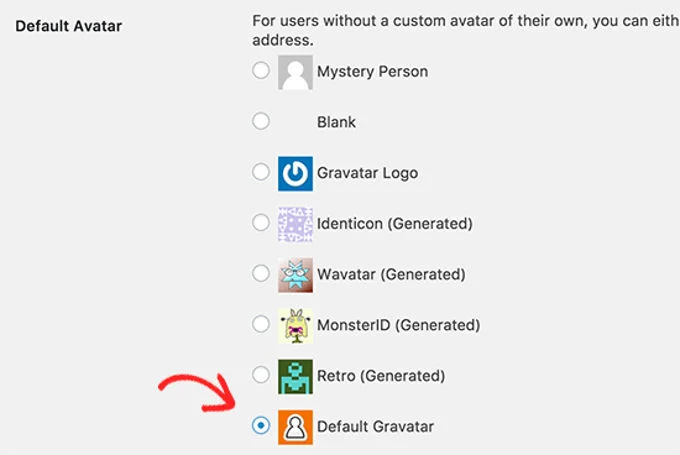
You may have seen the default mystery man avatar on blogs. It's easy to replace the default avatar on blogs with one that represents your brand. Upload the image you want to be the default avatar, then add the code to your WordPress functions.php.
add_filter( \'avatar_defaults', \'wpb_new_gravatar' );
function wpb_new_gravatar ($avatar_defaults) {
$myavatar = \'http://voorbeeld-site.nl/wp-content/uploads/2019/06/wpb-default-gravatar.png';
$avatar_defaults[$myavatar] = "Standaard Gravatar";
return $avatar_defaults;
}
Now you can go to the "Settings" page and select your default avatar.
Dynamic copyright dates in your WordPress footer.
By editing the footer template of your theme you can add the copyright date. It will not be visible when your site launches and will not change automatically next year. This code can be used to add a dynamic copyright year to the WordPress footer.
function wpb_copyright() {
global $wpdb;
$copyright_dates = $wpdb->get_results(\"
SELECT
YEAR(min(post_date_gmt)) AS firstdate,
YEAR(max(post_date_gmt)) AS lastdate
FROM
$wpdb->posts
WHERE
post_status = \'publish\'
\");
$output = \'\';
if($copyright_dates) {
$copyright = \"© \" . $copyright_dates[0]->firstdate;
if($copyright_dates[0]->firstdate != $copyright_dates[0]->lastdate) {
$copyright .= \'-\' . $copyright_dates[0]->lastdate;
}
$output = $copyright;
}
return $output;
}
Once you have added this function, go to your footer.php and insert the following code where you want to display the dynamic copyright day:
<?php echo wpb_copyright(); ?>This function looks for the date of the first and last post. The function then echoes the years every time you mention the post.
Change your background color randomly in WordPress
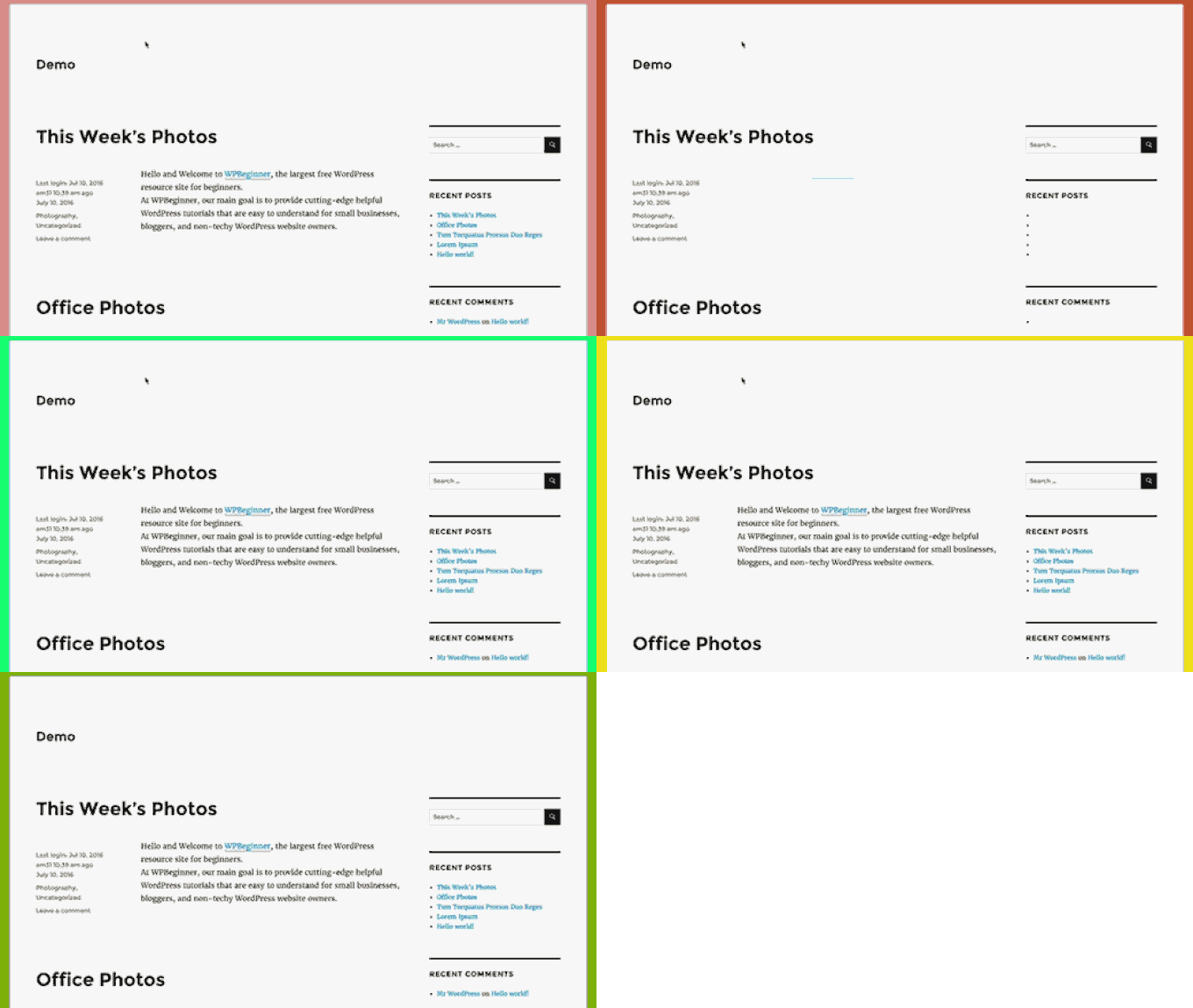
You can randomly change the WordPress background color on every page load. Here's how to do it. This code must be added to the WordPress functions.php file of your theme.
function wpb_bg() {
$rand = array(\'0\', \'1\', \'2\', \'3\', \'4\', \'5\', \'6\', \'7\', \'8\', \'9\', \'a\', \'b\', \'c\', \'d\', \'e\', \'f\');
$color =\'#\'.$rand[rand(0,15)].$rand[rand(0,15)].$rand[rand(0,15)].
$rand[rand(0,15)].$rand[rand(0,15)].$rand[rand(0,15)];
echo $color;
}
Next, you need to edit the header.php file of your theme. Look for the <body> and replace it with the following line:
<body 1001 style="\"background-color:" 1000\">>You can now save your changes and log in to your website to see it in action.
Updating WordPress-URLs
You need to update WordPress URLs if your WordPress login page is not loading or reloading frequently.
You can do this using the WordPress functions php file. However, if you do this, you will not be able to change the address on the configuration page. The site URL and WordPress URL fields cannot be edited. This can be fixed by adding this code to your function. Also, you can edit the URLs in the database using MyPHPadmin.
update_option( \'siteurl\', \'http://example-site.com' );
update_option( \'home', \'http://example-site.com' );
Don't forget to replace example-site.com with your domain name. Log in and go to Settings to set the URLs. You will need to remove any code you have added to your feature file. Otherwise, it will keep updating the URLs every time you open your site.
Adding additional image sizes to WordPress
WordPress automatically generates different formats for images when you upload them. Additional image sizes can be created for your theme. This code can be added to your theme's function file.
add_image_size( \'sidebar-thumb', 120, 120, true ); // Hard Crop
add_image_size( \'homepage-thumb', 220, 180 ); // Soft Crop
add_image_size( \'singlepost-thumb', 590, 9999 ); // Unlimited Height
This code creates three image formats of different sizes. You can modify the code to suit your needs. This code allows you to display certain image sizes anywhere in your theme.
<?php the_post_thumbnail( \'homepage-thumb\' ); ?>Add a new navigation menu to your theme
WordPress allows theme developers to create and display navigation menus. To add this code to your theme's function file, you can define a new location for your menu.
function wpb_custom_new_menu() {
  register_nav_menu(\'my-custom-menu\',__( \'My Custom Menu\' ));
}
add_action( \'init\', \'wpb_custom_new_menu\' );
Now you can go to 'Appearance' >'Menus' and you will see 'My custom menu' as the theme location option.
This code should be added to your theme, where you want the navigation menu to appear.
'my-custom-menu',
    \'container_class' => 'custom-menu-class' ) );
?>
Add profile fields for your authors
Want to add more fields to your WordPress author profiles? You can add this code to your functions file.
function wpb_new_contactmethods( $contactmethods ) {
// Add Twitter
$contactmethods[\'twitter\'] = \'Twitter\';
//add Facebook
$contactmethods[\'facebook\'] = \'Facebook\';

return $contactmethods;
}
add_filter(\'user_contactmethods\',\'wpb_new_contactmethods\',10,1);
This code will add Twitter & Facebook fields to user profiles in WordPress.
These fields can now be displayed in your author template as follows:
twitter; ?>You can add ready-made widget areas and sidebars to WordPress themes.
Premium themes make it very easy to create sidebars. This one is very popular and many developers are familiar with it. It is a great tool and deserves to be included in the list. Copy the following code into your WordPress function php or functions.php file
// Register Sidebars
function custom_sidebars() {
$args = array(
\'id' => 'custom_sidebar',
\'name' => __( \'Custom Widget Area', \'text_domain' ),
\'description' => __( \'A custom widget area', \'text_domain' ),
\'before_title' => \'.'<h3 class="\"widget-title\"">\',
\'after_title' => 'after_title' => 'after_title' => 'after_title' => 'after_title'.'</h3>\',
\'before_widget' => 'before_widget' => 'before_widget' => 'before_widget' => 'before_widget'.'<aside id="\"%1$s\"" class="\"widget" %2$s\">\',
\'after_widget' => 'after_widget' => 'after_widget' => 'after_widget' => 'after_widget'.'</aside>\',
);
register_sidebar( $args );
}
add_action( \'widgets_init', \'custom_sidebars' );Proceed to 'Appearance' - 'Widgets' in the back-end and you will see your newly created custom widgets area.
This code will display the widget area or sidebar of your theme.
Hide WordPress login errors
Hackers can use WordPress login errors to find out if someone has entered an incorrect password or username. You can make your WordPress login area more secure by hiding login errors.
function no_wordpress_errors(){
  return \'Something is wrong!\';
}
add_filter( \'login_errors\', \'no_wordpress_errors\' );
Users will now see a standard message if they type an incorrect username/password.
Log in to WordPress with email addresses
WordPress allows users to log in to the site with a username or email address. You can add this code to your WordPress functions.php to disable email login.
remove_filter( \'authenticate', \'wp_authenticate_email_password', 20 );Disabling search in WordPress
This code can be added to your function file to disable search functionality on WordPress sites.
function fb_filter_query( $query, $error = true ) {

if ( is_search() ) {
$query->is_search = false;
$query->query_vars[s] = false;
$query->query[s] = false;

// to error
if ( $error == true )
$query->is_404 = true;
}
}

add_action( \'parse_query\', \'fb_filter_query\' );
add_filter( \'get_search_form\', create_function( \'$a\', \"return null;\" ) );
You can change the "read more" text to access the excerpts in WordPress
Do you want to modify the text after the excerpt? This code can be added to the WordPress functions.php file of your theme.
function modify_read_more_link() {
    return \'<a class="\"more-link\"" href="/en/"\'" . get_permalink() \'\">Your Read More Link Text</a>\';
}
add_filter( \'the_content_more_link', \'modify_read_more_link' );
Disabling RSS feeds in WordPress
RSS feeds are not required for all websites. This code can be added to your WordPress theme's function file to disable RSS feeds.
function fb_disable_feed() {
wp_die( __(\'No feed available,please visit our <a href="/en/"\'." get_bloginfo(\'url\') .\'\">homepage</a>!\') );
}

add_action(\'do_feeded', \'fb_disable_feeded', 1);
add_action(\'do_feed_rdfed', 'fb_disable_feeded', 1);
add_action(\'do_feed_rss', 'fb_disable_feeded', 1);
add_action(\'do_feed_rss2', 'fb_disable_feeded', 1);
add_action(\'do_feed_atom\', \'fb_disable_feeded\', 1);
Change the length of the excerpt in WordPress
WordPress restricts the length of an excerpt to 55 words. You can add this code to your function file to modify the length of the excerpt. If you wish, you can modify the number 100 to indicate how many words you want to appear in the excerpts.
function new_excerpt_length($length) {
return 100;
}
add_filter(\'excerpt_length\', \'new_excerpt_length\');
🚀 Page Generator Pro: The ideal plugin to create massive content in WordPress
Adding an administrator user in WordPress
You can create an administrator if you forget your WordPress password or email address. This code can be added to the WordPress functions php or functions.php of your theme via an FTP client, from the hosting panel or by entering this code directly into your theme.
function wpb_admin_account(){
$user = \'Username\';
$pass = \'Password\';
$email = \'[email protected]\';
if ( !username_exists( $user )  && !email_exists( $email ) ) {
$user_id = wp_create_user( $user, $pass, $email );
$user = new WP_User( $user_id );
$user->set_role( \'administrator\' );
} }
add_action(\'init\',\'wpb_admin_account\');
Remember to enter your username, password and email address. Don't forget to delete the code from your functions folder after logging into your WordPress site.
Remove the welcome panel from your WordPress dashboard
The WordPress admin area control panel now has a welcome screen. This screen provides useful shortcuts for new WordPress users to do things. It can be easily hidden by adding the following code in your functions file.
remove_action(\'welcome_panelel', \'wp_welcome_panel');Show the total number of registered users in WordPress
You want to display the number of registered users on your WordPress site. This code can be added to the functions.php of your theme.
// Function to return user count
function wpb_user_count() {
$usercount = count_users();
$result = $usercount[\'total_users'];
return $result;
}
// Creating a shortcode to display user count
add_shortcode(\'user_count', \'wpb_user_count');
This code will generate a shortcode that will allow you to display the total number of registered users on your website. This shortcode can be added to [user_count] on any page or post where you want to display the total number.
Enable shortcodes in text widgets
WordPress does not allow using shortcodes in text widgets by default. This can be fixed by adding this code to your theme's functions file.
// Allow shortcodes in text widgets
add_filter(\'widget_text',\'do_shortcode');
WordPress posts can be customized with odd and even CSS classes
There are many WordPress themes that have an odd class or theme for WordPress comments. This helps users see where one comment ends and the next begins.
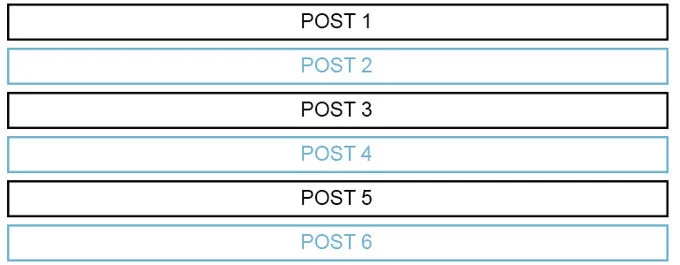
The same technique can be used for WordPress posts. It is visually appealing and allows users to quickly browse content-heavy pages. This code can be added to the functions.php or WordPress functions php file of your theme.
function oddeven_post_class ( $classes ) {
   global $current_class;
   $classes[] = $current_class;
   $current_class = ($current_class == \'odd\') ? \'even\' : \'odd\';
   return $classes;
}
add_filter ( \'post_class\' , \'oddeven_post_class\' );
global $current_class;
$current_class = \'odd\';
This code gives WordPress posts an unusual or even more elegant look. To give a different style to your posts, you can add a custom CSS. This is a sample code to help you get started.
.even {
background:#f0f8ff;
}
.odd {
 background:#f4f4f4fb;
}
The result will be as follows.
Adding additional file types for uploading in WordPress
By default, WordPress only allows you to upload the most common file types. However, you can extend the functionality to allow you to upload other file types. This code can be added to your theme's function file:
function my_myme_types($mime_types){
    $mime_types[\'svg\'] = \'image/svg+xml\'; //Adding svg extension
    $mime_types[\'psd\'] = \'image/vnd.adobe.photoshop\'; //Adding photoshop files
    return $mime_types;
}
add_filter(\'upload_mimes\', \'my_myme_types\', 1, 1);
It allows you to upload SVG or PSD files to WordPress. It's best if you look it up first to determine the allowed file types. Then, you can use these types in your code.
Remove default image links in WordPress
WordPress will automatically link an image to your page or image file attachment when you upload it. Users can click on an image to be taken to a different page than your post. How do you prevent WordPress from automatically linking image files? This code snippet can be added to your functions file.
function wpb_imagelink_setup() {
    $image_set = get_option( \'image_default_link_type\' );

    if ($image_set !== \'none\') {
        update_option(\'image_default_link_type\', \'none\');
    }
}
add_action(\'admin_init\', \'wpb_imagelink_setup\', 10);
If you upload a new photo in WordPress, it will not be linked automatically. If you want, you can link it to the attachments or files page.
Adding an author infobox to WordPress posts
This method can be used to display author bios at the end of entries on multi-author sites. Add this code to your functions.
function wpb_author_info_box( $content ) {

global $post;

// Find out if the post is one-post with a post author
if ( is_single() && isset( $post->post_author ) ) {

// Find the name of the author
$display_name = get_the_author_meta( \'display_name\', $post->post_author );

// Display name not available? Use nickname
if ( empty( $display_name ) )
$display_name = get_the_author_meta( \'nickname\', $post->post_author );

// Find the biographical information and description of the author
$user_description = get_the_author_meta( \'user_description\', $post->post_author );

// Find author\'s URL
$user_website = get_the_author_meta(\'url\', $post->post_author);

// The link to the author archive page is available
$user_posts = get_author_posts_url( get_the_author_meta( \'ID\' , $post->post_author));

if ( ! empty( $display_name ) )

$author_details = \'<p class="\"author_name\"">About . $display_name . \'</p>\';

if ( ! empty( $user_description ) )
// Auteur avatar and bio

$author_details .= \'<p class="\"author_details\"">\' . get_avatar( get_the_author_meta(\'user_email') , 90 ) . nl2br( $user_description ). \'</p>\';

$author_details .= \'<p class="\"author_links\""><a href="/en/"\'." $user_posts .\'\">Bekijk alle berichten van . $display_name . \'</a>\';

// Verify if the author has a website.
if ( ! empty( $user_website ) ) {

// Link to author's website
$author_details .= ' | <a href="/en/"\'" . $user_website .\'\" target="\"_blank\"" rel="\"nofollow\"">Website</a></p>\';

} else {
// If there isn't an author's website, close the paragraph
$author_details .= \'</p>\';
}

// All this information should be passed to the message content
$content = $content . \'<footer class="\"author_bio_section\"">\' . $author_details . \'</footer>\';
}
return $content;
}

// Add feature to your post content filter
add_action( \'the_content', 'wpb_author_info_box' );

// Allow HTML in author's bio section
remove_filter(\'pre_user_description\', \'wp_filter_kses\');
To make it look better, you will need to add a custom CSS. This CSS example may serve as a guide.
.author_bio_section{
background: none repeat scroll 0 0 #F5F5F5F5;
padding: 15px;
border: 1px solid #ccc;
}

.author_name{
font-size:16px;
font-weight: bold;
}

.author_details img {
border: 1px solid #D8D8D8D8;
border-radius: 50%;
float: left;
margin: 0 10px 10px 10px 0;
}
Disable XML-RPC in Wordpress
XML-RPC allows external applications to communicate remotely with your WordPress site. Hackers can exploit this vulnerability to attack security. To disable XMLRPC in WordPress, simply add the following code to your function file:
add_filter(\'xmlrpc_enabled', \'__return_false');We hope you find this interesting post very useful, full of tricks and shortcuts to use and customize the functions.ph WordPress file.
Si quieres conocer otros artículos parecidos a Personalizar el archivo functions.php WordPress | 20+ Consejos [actualizado] puedes visitar la categoría Ayuda y Soporte.
 Español Español
  English
  Português do Brasil
Leave a Reply