
How to change the font color in WordPress.

If you are looking to customize the design of your WordPress website, changing the font color can be an excellent option. With the help of a few settings and plugins simple, you can make your content stand out and be more eye-catching to your visitors. In this article, we'll show you how to change font color in WordPress quickly and easily.
Why change the font color in WordPress?
Choosing the right colors for your website can have a big impact on how visitors perceive your content. Font color is one of the most important factors to consider, as it can make text easier to read and more visually appealing.
Also, if you have a brand or logo, you can use your brand colors to make sure your website is in line with your visual identity and recognizable to your customers and followers.
1. Change the Font Color in Wordpress with your Theme Customizer

Most of the topics have the option to change fonts in the Theme Customizer. In your WordPress, First, go to “Appearance” > “Customize”. From there, there are several locations where you can find the font color settings. In the WP theme we're using, it's under “Appearance” > “Customize” > “General” > “General Typography”. Your theme may use a different location, but every good theme has these options, so look in the WordPress Customizer and you'll find it.
2. Changing the font color in WordPress with Elementor (text)

The image above shows how to change the color of the font in Elementor for a single text. Just open a page with Elementor and click on a text area, goto “Style”. Where it says “Text Color” there are two buttons on the right, both of which will change the color of your font in different ways.
3. Change font color in WordPress with Elementor (global)

The image above shows how to change the font color in Elementor for everything built with Elementor. Just open any page with Elementor, for example the same as before. Click on the menu (top left) and then click on "Site Settings". Both "Global colors" and "Typography" will make it easy for you to change the global font colors.
4. Changing the font color in WordPress with the Classic Editor
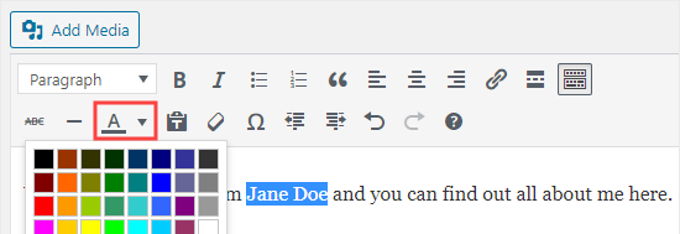
The Classic Editor hides the font color options by default, so let's make them appear first.
- To change the color of the text, click on "Toggle toolbar", which is located under "Add media" or "Add contact form".
- You should now have additional options. One of them is the "Text color" option in the drop-down box.
- The down arrow should show options for customizing the font text. These customization options are usually found in other customization tools. You can create your own font colors if you don't like the basic color options. To change the text color, click the "X" button in the lower right corner.
5. Change font color in WordPress with CSS (global)
Again go to "Appearance" > "Customize". This time look at the bottom for "Additional CSS" or "Custom CSS". Any CSS placed there will not be lost in case you update your theme.
Use this code to change all the titles of the H tags.
Of course, you can apply different hexadecimal codes for different colors. This only changes the color of all titles, not the actual title of the page.
h1, h2, h3, h4, h5, h6 {
                 color: #1F618D;
				 }
Use the following code for the page title. Note that different hexadecimal codes can be applied for different colors.
.entry-title a {
                 color: #1F618D;
				 }
Use this code to change all the titles of your entries
Different hexadecimal codes can be applied for different colors.
h1.entry-title {
                 color: #1F618D;
				 }
Si quieres conocer otros artículos parecidos a Cómo cambiar el color de la fuente en WordPress puedes visitar la categoría Ayuda y Soporte.
 Español Español
  English
  Português do Brasil
Leave a Reply