
WordPress Backup: 4 Methods

Perform a WordPress backup It's essential for your site and shouldn't be overlooked. It can save you a lot of trouble in various situations. If your site has been hacked, affected by an update, or an error, you'll be able to restore the saved version.
Backing up your WordPress site can save you hours of troubleshooting and time. A backup can also help you clone your site and move it to a new hosting provider. If you don't have an up-to-date backup, you should make it a top priority.
WordPress Backup
As we mentioned earlier, a WordPress backup It is an essential process for maintaining the integrity of your website. This involves creating a copy of all your WordPress files and the database and storing them in a secure location so that you can restore the website in the event of a problem or data loss.
There are several ways to back up WordPress, including specialized plugins, web hosting tools, and manual methods. Backup plugins are a popular option, as they simplify the process and often offer options for automatically scheduling regular backups.
It's important to remember that, in addition to creating regular backups, you should also store them in a secure location outside of your web hosting server. This may include cloud storage services or external drives.
Now, let's explore four different ways to back up WordPress.
1. Back up your WordPress site using a plugin
We'll use the plugin Updraft Plus. You can download the plugin here and upload it to your website, or use the search box under “Plugins” > “Add New” in your WordPress dashboard. That’s the fastest way. This plugin has over 3 million active installations on websites.
After activating the plugin, you'll be automatically prompted to create your first backup. See the screenshot below.
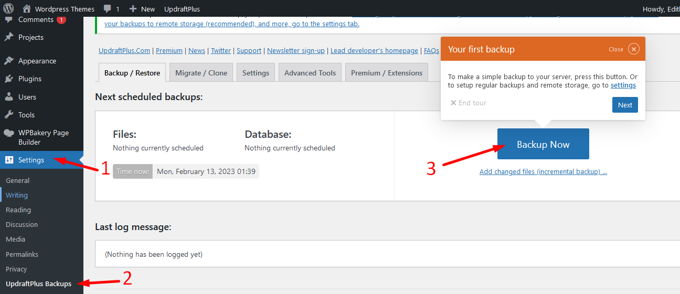
You can also find it in your dashboard under "Settings" > "UpdraftPlus Backups.".
However, to access all the advanced settings, you'll need to purchase the version pro version. For most people who don't know much about websites, using a plugin is the easiest way to manage backups.
Next, configure the plugin's options. You'll probably want both the database and your files included in the backup, so leave both options checked.
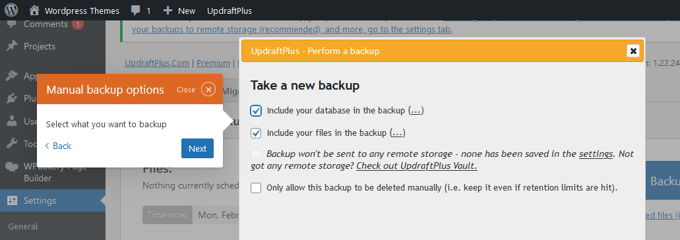
Your backup is now ready. Now you should quickly decide on all the automatic scheduling settings you want.
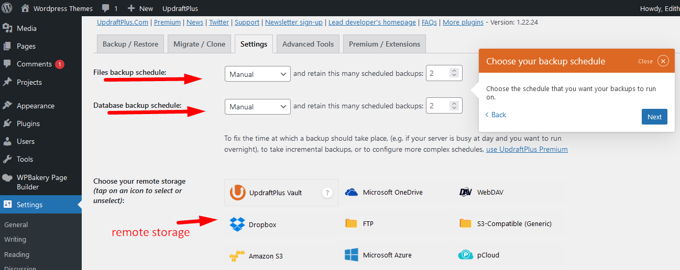
If you want to restore a backup you've created, it now takes just one click. This is a great plugin—even the free version.

WordPress Backup Plugin
It's important to know that there are several WordPress backup plugins available on our site. Some of the most popular ones include:
- UpdraftPlus: This is the one we used in the first method. It is one of the most popular backup plugins for WordPress. It allows you to schedule automatic backups and send them to a variety of storage destinations, such as Google Drive, Dropbox, Amazon S3, and others.
- BackupBuddy: This plugin allows you to create full WordPress backups and store them in secure remote storage. It also includes a website migration feature that makes it easy to transfer a site from one server to another.
- Duplicator: In addition to creating WordPress backups, Duplicator also allows you to clone websites and easily transfer them between servers.
- WPMU DEV Snapshot Pro: Snapshot Pro is the ideal solution for all your backup and restore needs. Create full backups of your website with just a few clicks. It’s one of the best backup and restore plugins for WordPress.
These are just a few examples of WordPress backup plugins. It's important to research and compare several options before choosing the one that best suits your needs.
🚀 Duplicator Pro: the best backup and migration plugin for WordPress
2. Back up WordPress using a web hosting control panel (cPanel/Plesk/DirectAdmin)
For most people, the most common way to create a backup is through their web hosting control panel. This could be cPanel, Plesk, DirectAdmin, or another system. cPanel is the most widely used, so we'll show you screenshots of that system, but the steps are virtually the same for the other systems.
Log in to your hosting dashboard, use the search box, type "back," and click "Backups." You'll now see what's shown in the following screenshot. From here, you have three options. The first option says "Download a full account backup." With this option, you still need to generate the backup, since it’s a backup taken at this moment.
That will take some time—or quite a while if you have a lot of GB in your account. When the backup is ready, you can download it from the /home directory in the File Manager. You will be notified by email when the backup is ready for download.
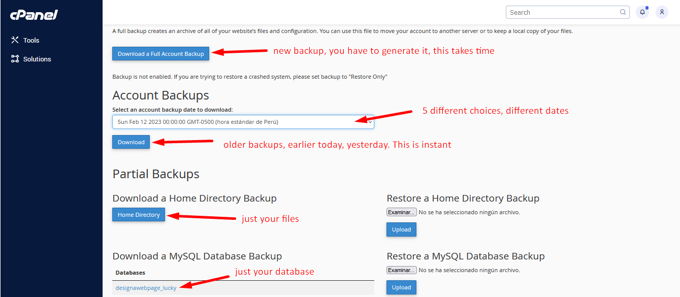
Option 2: If you don't want to wait 10 minutes for your backup to be ready, you can download a backup that's already available. A backup from today, yesterday, last week, or two weeks ago. This depends on the settings configured by the server administrator.
Option 3: If you don't need a full backup of your account—that is, one that includes all your emails and a bunch of other stuff you probably won't need—use this option. Download the files and the database for your websites separately.
3. Backing Up WordPress Using WHM
WHM is the system that cPanel uses to manage the entire server. If you have access to WHM, it means you're an administrator and can create your own backups. Another advantage is that you can restore your account from a backup with just a couple of clicks.
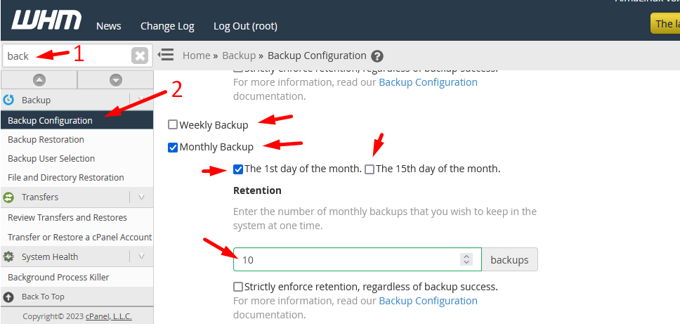
Log in to your WHM, use the search box, and search for "backup." You'll now see four backup options in the menu. We'll discuss two of them. First, "Backup Settings"—click on that option.
The screenshot below shows what you'll see there. It actually starts with all the days of the week on which you can also schedule backups. You can also choose to create weekly and monthly backups.
If your server has enough space, you can create as many backups as you want.
4. Back up your WordPress site using FTP
All we have to say about FTP is that it's outdated and no longer necessary, since all hosting providers these days offer a great control panel with a file manager to work with. With FTP, you have to upload all your files one by one, which leaves plenty of room for errors and is very time-consuming. We don't recommend it.
In conclusion, backing up WordPress is a critical and essential task for maintaining the security and integrity of your website. It is important to perform regular backups and store them in a secure location outside of your web hosting server.
There are several WordPress backup plugin options available that can simplify the process and make it easier to manage. It's important to research and compare various options before choosing the one that best suits your needs.
Remember that prevention is always better than cure, and that a backup can save you a lot of time and effort if you run into problems with your website. So don't hesitate—back up your WordPress site today and keep your website protected and secure.
Si quieres conocer otros artículos parecidos a Copia de seguridad WordPress: 4 métodos puedes visitar la categoría Ayuda y Soporte.
 Español Español
  English
  Português do Brasil
Leave a Reply