
Largest Contentful Paint (LCP) and How to Improve It in WordPress

This post is the first in a three-part series on Core Web Vitals. In this post, we’ll take a look at each of the three metrics that form the core of Google’s new standard for website quality. Our first stop: Largest Contentful Paint (LCP) and how to improve it in WordPress.
At this point, Core Web Vitals are a critical ranking factor on Google. As metrics of user experience, they determine whether visitors have a good experience on your site and also influence your performance in search engines. That’s why it’s important to get them right.
To help you do that, as we’ve already mentioned, we want to take an in-depth look at each of the Core Web Vitals metrics. Next, we’ll discuss exactly what they are and why they’re important for SEO. After that, you’ll get an A-level education on how to optimize the Largest Contentful Paint—the first of these metrics—on your WordPress site.
This post explains what LCP is, how to measure it, what number you should aim for, and how to improve this metric on your WordPress site if necessary.
What are Core Web Vitals?

First of all, in case this topic is completely new to you, let's start with the basics: What exactly are Core Web Vitals?
In short, they are a set of user-centric metrics that measure the loading speed, interactivity, and visual stability of web pages, which Google introduced in May 2020. They are intended to help website owners and developers understand the quality of the user experience their pages provide and identify areas for improvement.
Core Web Vitals consist of three metrics:
- Largest Contentful Paint (LCP)
- First Input Delay (FID)
- Cumulative Layout Shift (CLS)
Each of these is measured separately and is influenced by different factors, which is why we are writing this series of articles.
Why Are Core Factors Important for SEO?
The reason we emphasize this point is quite simple. Google has made it clear that it wants to prioritize pages that provide a pleasant experience for visitors. Core Web Vitals are a way to measure that.
As a result, they are now a key component of Google’s algorithm for evaluating and ranking web pages. Here is a direct quote from Google’s own page on the subject:
Core Web Vitals are the subset of Web Vitals that apply to all web pages; they must be measured by all site owners and will appear in all Google tools.
Therefore, if you want your pages to perform well, you need to focus not only on aspects such as web design, E-A-T, content authority, on-page optimization, site speed, and mobile compatibility, but also on these UX metrics. Otherwise, you could find yourself penalized by Google and fail to rank well.
In addition, improving Core Web Vitals can lead to greater user engagement, longer visits to the site, and, ultimately, an increase in conversions and revenue. Therefore, optimizing your website for these metrics not only helps with SEO but also boosts your website’s financial performance.
Is that clear? Then let's move on to the first metric.
What is Largest Contentful Paint (LCP)?
LCP is the first Core Web Vitals metric we want to examine. Measures the time it takes for the largest element in the viewport (i.e., what you see in your browser window) to fully render on the screen after a user begins loading a page. It can be an image, a video, a block of text, or any other element that takes up a significant amount of space on the page.
LCP is an important metric because it reflects how quickly users can access the main content of a web page, which is probably what they came to see in the first place. A slow LCP score means users may have to wait longer before they can start reading or interacting with the page. This can lead to frustration and simply cause them to leave. That’s not good.
How is Largest Contentful Paint (LCP) calculated?
A page's LCP score is determined based on the time, in seconds, it takes for the largest element in the viewport to fully render. However, the metric only considers certain types of elements in its calculation:
- elements
<img>, that is, images - elements
<image>inside, documents<svg> - elements
that display a preview image - Elements that load a background image using the function
url() - Block-level and inline elements with text content
In summary, visual elements and main text. At the same time, LCP does not take into account components that users are unlikely to consider "content," such as:
- Elements with an opacity of 0, which are invisible to the user
- Elements that cover the entire screen and likely serve as a background rather than content
- Placeholder images or images with little information that likely do not reflect the true purpose of the page
How do you test your site for LCP?
There are many ways to test Largest Contentful Paint on your WordPress website. As mentioned in the quote above, it’s now a metric in all Google tools, so you can start there.
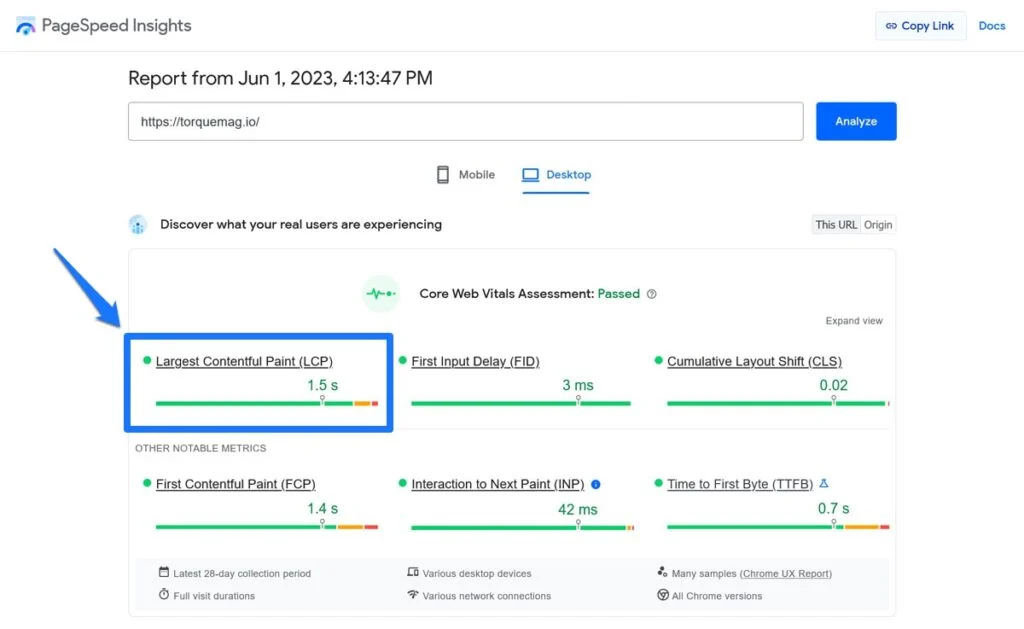
For example, when you enter your website into PageSpeed Insights, you can find your LCP score and see whether you've passed the test or not.
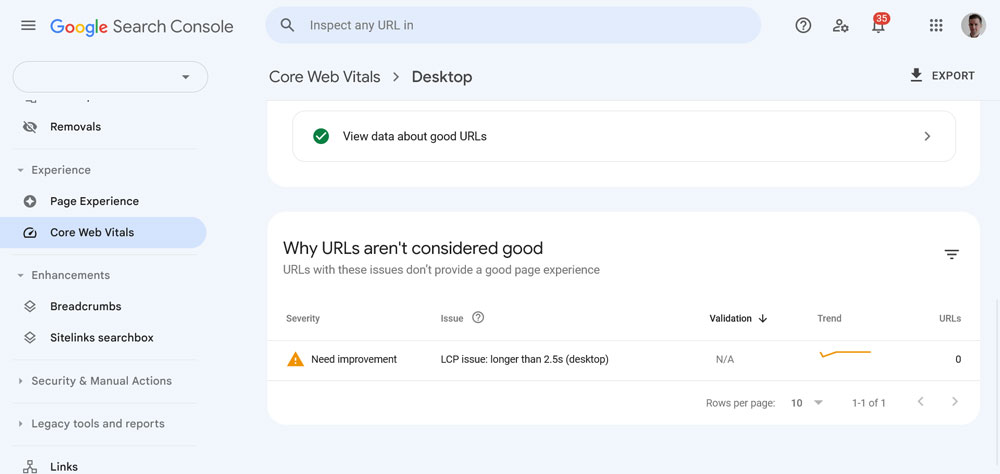
In addition, you'll find information about issues with the largest content paint and other issues in the Core Web Vitals report in Google Search Console.
Chrome's developer tools also display this information (more details below). In addition, there are browser extensions that allow you to measure these metrics, such as Vitales Web for Chrome and SpeedVitals for Firefox. Finally, if you're a developer, you might want to use more technical solutions such as the Web Vitals JavaScript library.
What is the ideal value for an LCP?
Now that you've learned how to measure LCP, your next question is probably: What exactly is a good value? What benchmark should you aim for?
In the case of Largest Contentful Paint, the magic number is 2.5 seconds. If your LCP score is less than 2.5 seconds, it’s considered good. The page in question is likely to provide a good user experience. If your score is between 2.5 and 4 seconds, Google considers it to need improvement. Anything over 4 seconds is considered poor.

So, it's pretty clear. You don't need to ask yourself—you know exactly what the search giant expects from you.
How Can You Improve Largest Contentful Paint in WordPress?
If, after running the tests, you realize that your site doesn't meet the benchmark mentioned above, don't worry. We'll spend the rest of this post discussing how to improve your LCP score if necessary.
The good news is that there are many things you can do. On the other hand, there are many factors that can affect LCP, so fixing it isn't usually a quick fix. You need to examine the entire page-loading process step by step. So let's get started...
Identifying the Largest Contentful Paint (LCP) Issue
The first step to improving your LCP score is to figure out exactly what your LCP element is. After all, how can you improve the delivery of something if you don't know what to focus on?
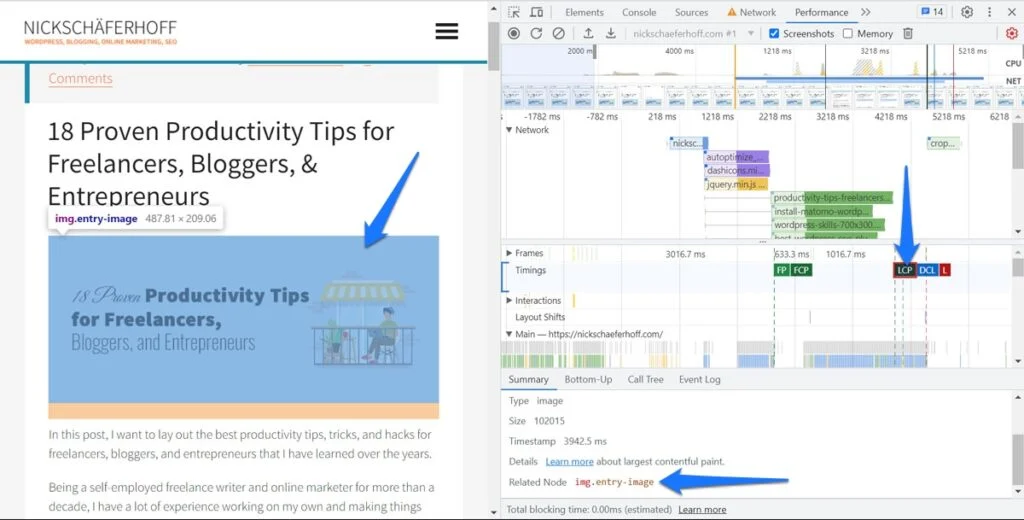
If you use PageSpeed Insights to measure your site, it will actually tell you which element is your LCP further down the page, in the section Diagnosis.
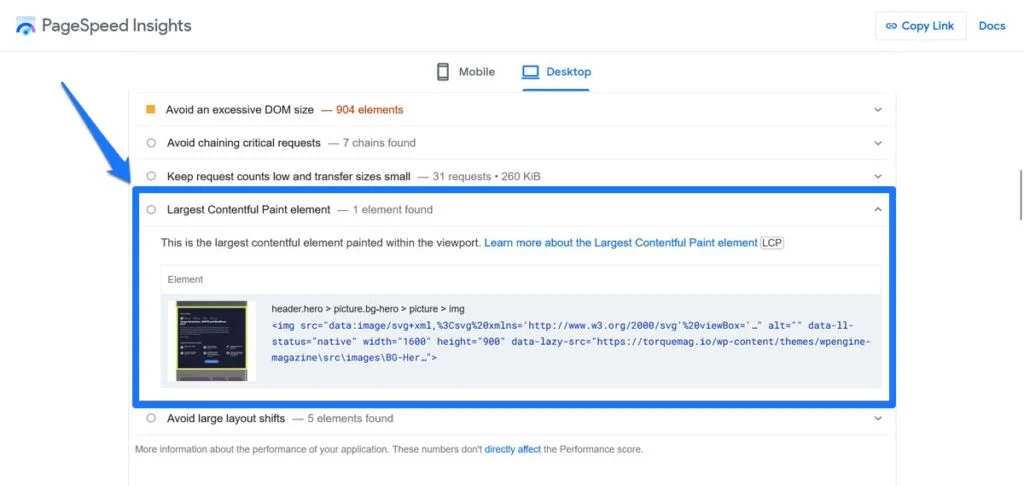
If you run a performance test in the Chrome browser's developer tools, it will also appear in the timeline and even highlight the LCP element on the page. Click LCP and then hover your mouse over the file below Related node.
Break down the loading process into steps
Next, to optimize your LCP, it helps to break the process down into several phases. As mentioned earlier, there is no one-size-fits-all approach. You need to look at it from different angles to figure out what needs to be fixed on your site.
The phases proposed by Google are:
- TTFB - It stands for "time to first byte," that is, the time that elapses from when a user requests the page until they receive the first byte of HTML.
- Delay in loading resources - The time that elapses from when the page files (HTML and CSS) are received until the LCP resources themselves are loaded.
- Resource Load Time - The phase during which the LCP resource is loaded.
- Element rendering delay - Finally, the time elapsed between the loading of the LCP element and its complete rendering.
Breaking down Largest Contentful Paint in this way allows you to focus on the different phases and improve them individually.
Optimize Hosting and Site Architecture
These are measures to improve TTFB and resource loading delays.
How quickly visitors receive data from your site depends on several factors. For one thing, there's the server. Even if your site takes up very little space—such as a single-page website—it can still experience significant delays due to a web hosting provider slow. Another factor is the components that make up your site, such as its operating system, themes, plugins, etc.
Consequently, improving all of these factors helps optimize Largest Contentful Paint. Here's how to do it:
- Invest in a high-quality hosting – As mentioned earlier, the web server is an important factor, and your hosting provider is therefore an important consideration. Avoid shared hosting if you can, and choose a hosting plan that matches your traffic. Also, try to host your site on a server located near your audience.
- Use high-quality themes and plugins - Make sure you get your site's components from reputable sources, so you can be sure they're well-coded, simple, and have good support. Use as few plugins as possible to reduce the number of HTTP requests on your site.
- Keep your site up to date - Updates to the WordPress core and plugins/themes include improvements, such as performance fixes. Stay up to date to get the latest and greatest.
By using these, you can ensure that visitors receive your site's data as quickly as possible. To determine whether your server is the problem, it will help to learn how to test your website's speed. Also, avoid multiple redirects and investigate the server requests mentioned above.
Use a Content Delivery Network (CDN)
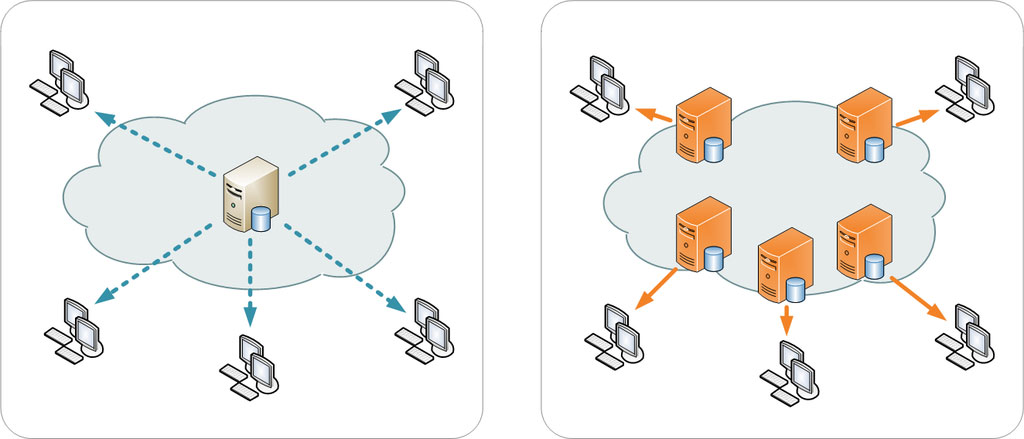
Another way to improve the time to first byte is to use a content delivery network (CDN). It helps reduce the distance between the user and the location from which they receive data from your website. This can result in faster loading times.
There are even specialized CDNs where you simply upload your images to external servers, such as Jetpack Site Accelerator. This makes a lot of sense, since images are usually the elements with the most content. CDNs also sometimes apply the image optimization techniques we'll discuss next.
Optimize Images and Web Fonts
We now turn to techniques for reducing resource load times. If you’ve been paying attention so far, you’ll know that this refers to the speed at which the LCP resource is delivered to the browser. An important consideration here is visual elements.
Images often end up being the largest files because they tend to be larger than text due to the amount of information they contain. That’s why one of the things you should focus on to reduce the load time of your resources is optimizing them:
- Use the correct size – Use only images that are as large as they appear on the page; otherwise, you’ll be forcing visitors to load more than they need to. This usually means resizing images before uploading them or adjusting WordPress’s media settings to exactly the size you need for your design. In plugin to regenerate thumbnails It can help you optimize the size of the images that are already on your site.
- A Commitment to Modern Image Formats – Not all image formats are the same. To keep your images as small as possible, use modern formats like WebP or AVIF, which take up less space than their predecessors.
- Compress images – Compressing means removing unnecessary data. You can do this before uploading your images (for example, by using TinyPNG/JPG o RIOT) or automatically using WordPress plugins such as Smush o Optimole.
- Lazy-loaded images do not appear on the screen – Lazy loading means not loading images that aren't yet visible in the browser. This can save a lot of time. Just be sure to exclude the images that do need to be visible right away.
Read more about this in our article on image optimization. While you're at it, reduce the size and number of your web fonts as well. Load only what you really need, and consider hosting your web fonts locally.
Optimize Your Website with WP Rocket
Below, we'll give you several tips that you can implement in a 100% using the plugin WP Rocket.
Configure caching and compression
Caching and compression are techniques for generally speeding up your website by making your site's files load faster. They can help with both resource loading delays and page load times.
The first method does this by pre-rendering your HTML documents and saving finished versions of them on your server, so this process doesn't have to be performed every time visitors want to view your site.
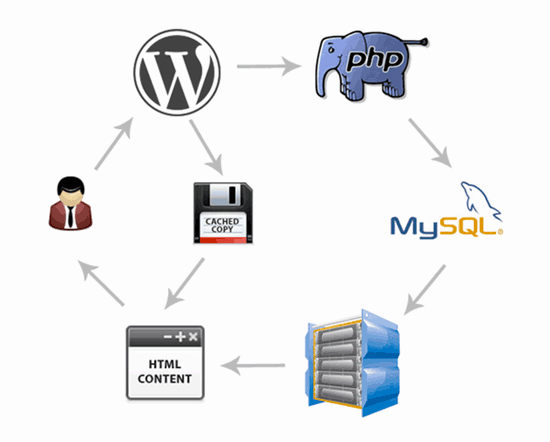
The second involves reducing the size of your website's files so they load faster. You can do this using Gzip compression or the latest Brotli Compression. Combine this with minifying your files so they take up less space and load faster.
A plugin like WP Rocket Many WordPress caching plugins can do all of the above and are an easy way to improve the loading speed of your site's content.
Remove resources that are blocking rendering
Now we’ll discuss improving the rendering delay of elements. Even if you’ve optimized your page’s load speed and the delivery of your LCP element, your score will still be poor if the element itself takes a long time to appear on the page. In this case, resources that block rendering are the most common culprits.
You can refer to the article linked above for detailed instructions on how to handle them. However, here are a few brief notes:
- Load scripts asynchronously and load essential JavaScript inline.
- Inline style sheets in HTML (this applies only to small style sheets, since inline elements are not cached).
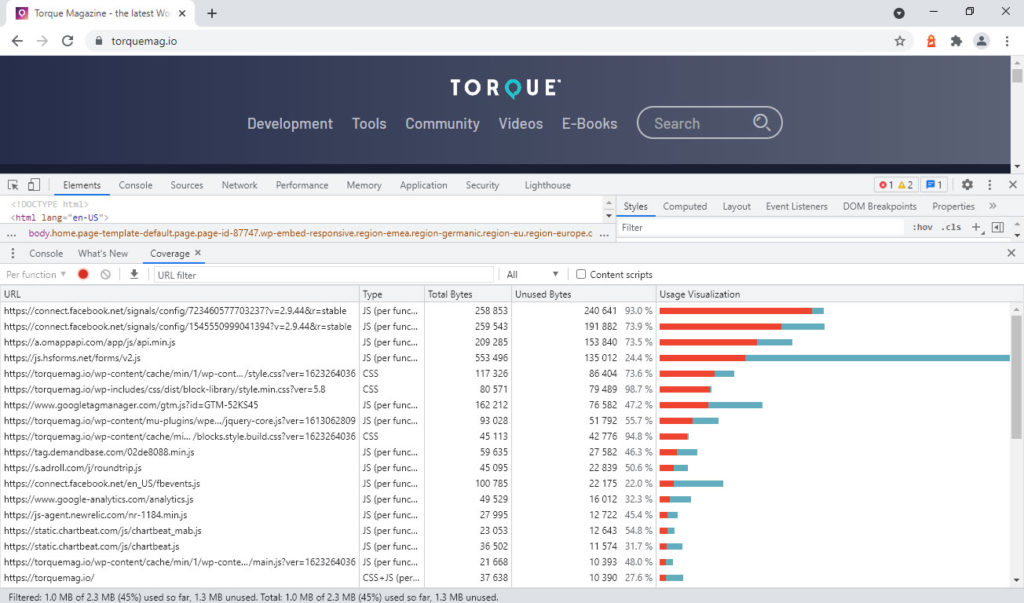
- Reduce the size of the stylesheet by removing unused CSS and JavaScript. Alternatively, defer non-critical CSS and minify and compress the stylesheets.
Use the function Coverage Use your browser's developer tools to identify the elements that your visitors need to load first. It also helps you identify unused code that you could remove.
Really Technical Stuff
If you're the type who likes to get technical, here are some more geeky things you can do to further improve your Largest Contentful Paint in WordPress:
- Preloading Images in HTML - Especially when used as CSS backgrounds or similar, add
<link rel=\"preload\">to prioritize your most important images. This also applies to fonts that may be needed to display the main text. - Adjust the priority of acquisition - Tell browsers what to load first by adding
fetchpriority="high". Limit it to one or two images; otherwise, it wouldn't do any good. - Use server-side rendering or pre-rendering – Especially if you have a fast server. This reduces the amount of work the browser has to do.
- Optimizing Web Fonts Using `font-display` – Establish the font-display rule a
swap,fallbackooptionalto prevent your text from freezing while web fonts are loading.
Largest Contentful Paint is just one of the three metrics that Google considers part of the Core Web Vitals and uses to evaluate a website's user experience and, ultimately, its search ranking. If you're having issues with site performance and search rankings, this is one of the factors you should take into account.
In this post, you've learned how to determine if this is an issue for your WordPress site, what LCP value you should aim for, and ways to improve it. Hopefully, by now you feel confident that you can improve your LCP.
As always, you don't have to be perfect. Choose something you feel capable of doing, put it into practice, and build on that.
Do you have any additional tips on the "most content" metric and how to improve it in WordPress? Feel free to share them in the comments..
Si quieres conocer otros artículos parecidos a Largest Contentful Paint (LCP) y cómo mejorar en WordPress puedes visitar la categoría Ayuda y Soporte.
 Español Español
  English
  Português do Brasil
Leave a Reply