
How to Add a Sticky Widget in WordPress in Multiple Ways (Including Elementor)

How do you add a widget in WordPress? Don't miss out on all the detailed information on how to do it in an amazing and effective way—a must-read!
Your website's sidebar is one of the most effective ways to capture customers' attention.
Companies strategically use this valuable space to promote offers or place ads in order to increase their revenue.
Placing content or an image widget in the sidebar is a smart strategy that can benefit your website in various ways. Some benefits may include improving engagement rates, while others may help keep your visitors on your site longer.
Scrolling down the page will remove the widget from view, and as a result, you won't be able to take full advantage of the widget's capabilities.
Since profit optimization is one of the most critical aspects of any business, we need to find a way to keep the widget sidebar visible.
This article will show you How to create a sticky or floating widget in WordPress in several ways.
Widgets in WordPress are tools that let you add content and additional features to your website in specific areas, such as the sidebars, footer, or header. There are two types of widgets: fixed and floating. In this article, we’ll explore the differences between the two and how they can improve the user experience on your website.
What are pinned widgets?
Sticky widgets are those that remain in a fixed position on the page while the user browses the content. They are typically found in the sidebars, header, or footer of a website and do not move even when the user scrolls.
Benefits of Fixed or Floating Widgets in WordPress
A sticky widget can be a huge help to your WordPress website in several ways:
- First, draw your customers' attention to the offer you want to promote.
- It stays on the screen at all times, so it's impossible to miss it.
- Place an ad that's always visible, increasing the chances that users will click on it, which will generate more revenue for you.
- Clicks will improve your SEO engagement metric, boosting your search engine rankings.
- A sticky widget that links to another internal page on your website will lower your bounce rate. The lower the bounce rate, the better.
All of the reasons listed above—and many more—are why we make the widget float on our product pages.
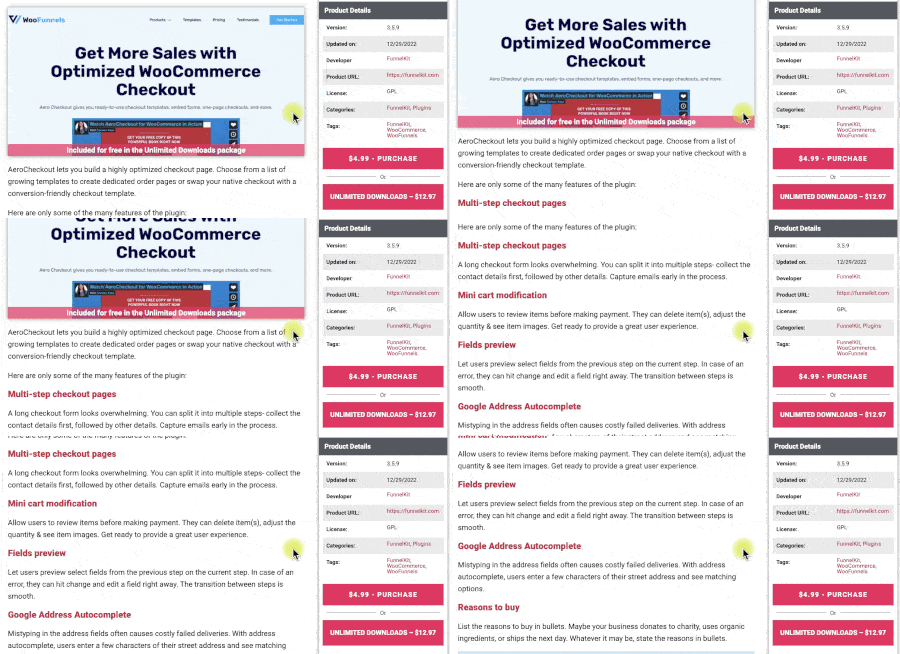
Now that you know why your website can also benefit from a sticky widget, let's learn how to set one up.
In the following sections, we'll show you how to create a sticky sidebar in several ways: using CSS, installing a plugin or by using the Elementor page builder.
How to Add a Sticky Widget in WordPress Using CSS
Although it's relatively simple, using the CSS method would be best if you understood the website's structural design.
Sticky widgets work best with themes that are coded to support the flexbox layout rather than floats. However, there is no one-size-fits-all code solution because each theme is coded differently.
Therefore, pasting the following code into your theme's stylesheet may not work. Instead, try to understand and replicate your site's rendering process.
Our example will demonstrate the process using the GeneratePress Premium because it is compatible with the flexbox container.
First, go to the page Appearance -> Widgets and add the widget (the one you want to float) to the bottom of the sidebar.
If the floating widget isn't the last one, it will hide the other widgets when you scroll down.
Once you've added it, visit the live page and verify that it has been added correctly.
Apply the CSS
For the widget to stick as you scroll down, both the content and the sidebar sections must be the same height.
To check if this is the case, open the inspection tool by right-clicking anywhere on the screen and clicking inspect.
Next, navigate through the DOM structure and verify that the height of the sidebar matches the height of the content.
If they're both the same height, great. You've saved yourself a step. Otherwise, the first CSS code snippet will increase the sidebar's height to the maximum.
You can add CSS to your child theme's stylesheet or the customization screen Additional CSS tab.
Go to the ID or class in the sidebar and add the height: 100% CSS rule.
.sidebar {
height: 100%;
}
Save your changes and check that the sidebar has been expanded to fill the entire page.
Next, select the widget (by class or ID) that you want to stick to the top of the page and add the following code:
.sticky-widget {
position: sticky;
top: 20px;
}
The top value controls the distance of the pinned widget from the top of the screen. Set it to 0 to place it at the top, or increase the number to create some space.
Once it's applied, visit the page and check that the widget stays in place as you scroll down.
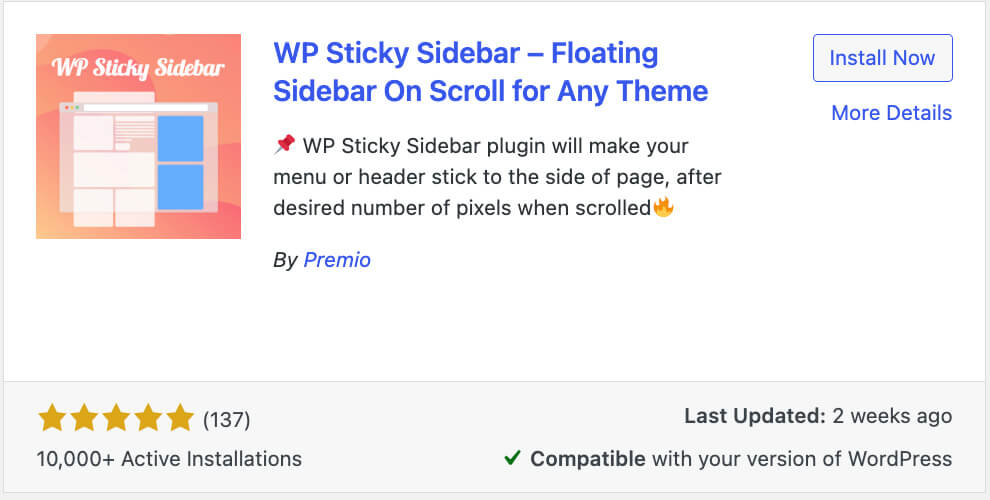
The WP Sticky Sidebar It will initially do the same thing as the previous CSS method.
However, the only difference is that it will work with any theme, whether it supports the flexbox container or the float layout.
It also simplifies the CSS process and saves you from having to write the rules yourself. Instead, you'll just need to enter a couple of element IDs, and the plugin will take care of the rest.
First, go to the WordPress plugins screen, search for WP Sticky Sidebar, and install it on your website.
Once activated, navigate to the plugin screen at Settings -> WP Sticky Sidebar.
You'll need to enter the class or ID of the specific element and the container that holds both the sidebar and the content.
For this example, we'll use the class OceanWP because it was created with a floating layout and the first CSS method didn't work.
So, right-click anywhere on the page's content and open the inspector tool.
First, we'll copy the ID of the container that holds both the content and the sidebar. In our example, it is content-wrap.
Next, we'll copy the class of the widget we want to pin. In our example, it is widget_media_image.
Once we have both IDs, we'll go back to the WP Sticky Sidebar plugin screen and paste them into the appropriate fields.
You can also increase the top margin value to a higher number to add space between the top of the screen and the widget.
Save your changes when you're done, and refresh the page to verify that the widget is now pinned.
How to Add a Widget in WordPress Using Elementor
If you're one of the many Elementor users, you're in luck because you can make the widget sticky without using another plugin.
This feature is part of the plugin Elementor Pro, which you can get on the official website for $59 or on PillBanana for just $4.99.
After activating Elementor Pro, open the visual editor and navigate to the section Advanced of the widget you want to set as a sticky widget.
Next, open the tab Motion Effects and change the setting Sticky drop-down list on the Top.
The widget will float immediately after you change the settings and will remain at the top of the screen on all devices.
You can also specify which devices you want to trigger the sticky widget by removing unwanted devices from the list.
In addition, you can set a number of Displacement to create space between the top of the page and the widget.
Once you're done, save your changes and visit the page to make sure it's working properly.
Sometimes, the widget doesn't stay within the column boundaries and hides parts of the footer.
To fix this, enable the option Stay in formation to keep the widget in position relative to its sidebar and ensure it remains within it.
Finally, save your changes and try it again to make sure it works properly.
Conclusion
Now that you know how to add a widget in WordPress, you can explore how they can enhance the user experience on your WordPress website. By choosing the right type of widget based on your goals, you can provide easier and more engaging navigation, encourage interaction, and increase visitor satisfaction.
In this article, we've shown you three different ways to add a sticky widget to a WordPress website:
- Using CSS rules
- Using a plugin
- Elementor Page Builder
Let us know which of the methods above you've used to accomplish this task, or if you need us to provide you with the appropriate CSS rules for your theme.
Frequently Asked Questions
How can I add a sticky or floating widget in WordPress?
To add a widget, go to the WordPress admin panel, then to Appearance > Widgets. There you'll find a list of available widgets that you can drag and drop into your theme's widget areas. Some WordPress plugins make it easy to add floating widgets.
Can I customize the design of my widgets?
Yes, you can customize the design of your widgets using CSS in the WordPress theme customizer, under Appearance > Customize > Additional CSS. There are also plugins that let you customize the appearance of your widgets without having to edit the code.
Can I use pinned and floating widgets at the same time?
Yes, you can combine fixed and floating widgets on your WordPress website depending on your needs and goals. For example, you could have a fixed widget in the sidebar to make navigation easier and a floating widget with social media share buttons.
Are there any plugins for adding floating widgets in WordPress?
Yes, there are several plugins that let you easily add floating widgets to your website, such as Floating Social Media Icons, WP Floating Menu, or WP-Chatbot. You can search for and install these plugins from the WordPress admin dashboard under Plugins > Add New.
Do widgets affect my website's performance?
Widgets can affect your website's performance if they aren't optimized or if you use too many of them. It's important to choose well-developed widgets and strike a balance between functionality and performance to ensure an optimal user experience.
Si quieres conocer otros artículos parecidos a Cómo añadir un widget en WordPress fijo de múltiples maneras (incluyendo Elementor) puedes visitar la categoría Ayuda y Soporte.
 Español Español
  English
  Português do Brasil
Leave a Reply