
4 steps to upload a theme file from your computer to Shopify
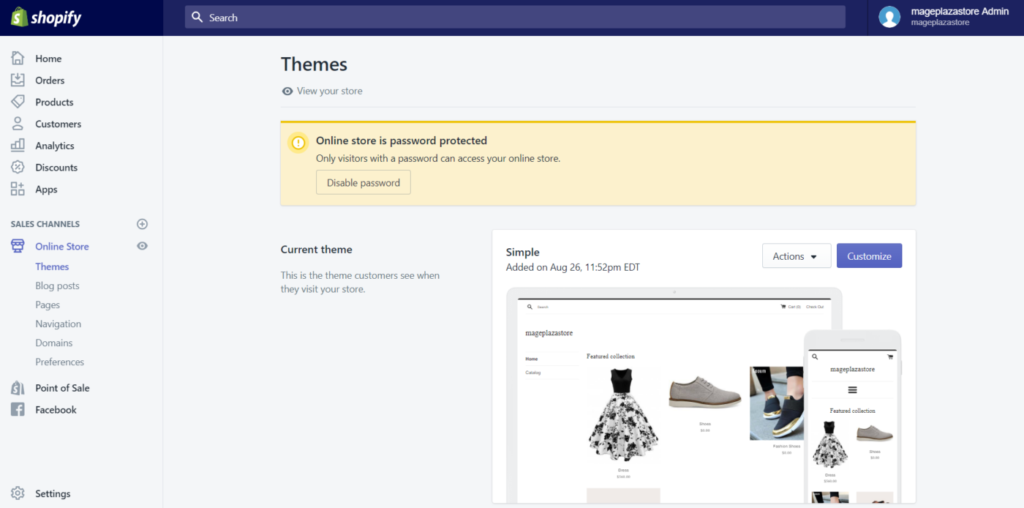
Upload a theme file from your computer This is one way to change your store's theme. By default, your Shopify Themes page will be set up as soon as you sign up for a Shopify account.
Before you can switch to a different theme for your Shopify store, you'll need to upload one to your admin panel.
There are a few methods that can help you add a theme to your Shopify admin page. But today, we'll just share how to use a .zip file from your computer to upload the template to your store.
Here are some simple steps on How to upload a template file from your computer on Desktop, iPhone, and Android.
If you want to give your Shopify store a professional look, check out our hundreds of templates available starting at $5.99:
How do you upload a theme file from your computer to your Shopify store?
Here's a guide on how to upload theme files to your Shopify store from your computer.
Step 1: Open the Themes section in the Shopify Admin
Log in to your Shopify account, then go to the section Online Store and then click the button Themes .
🚀 Shopify login and everything you need to know: frequently asked questions about Shopify
Step 2: Click "Upload Theme" to upload the theme to the Shopify store
Scroll down to see the More themes You must click on Upload Theme to upload your theme in the Shopify admin.

Step 3: Select the theme file from your computer to upload it
Once you've clicked the button Upload Theme A small dialog box named Upload Theme will appear. You have to click on Choose File to select the file you want to upload. Remember that the file you choose must be in .zip.
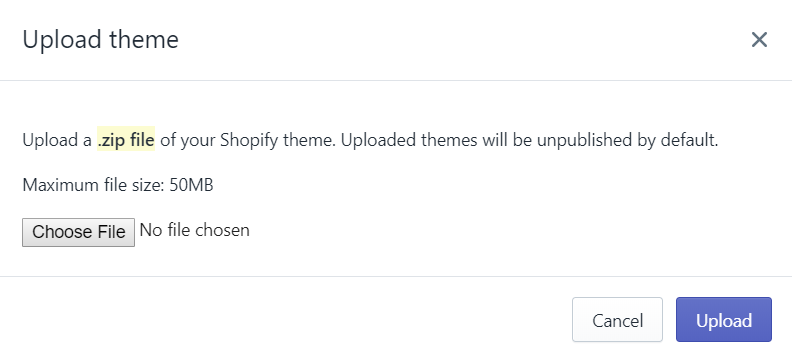
Step 4: Upload the theme file
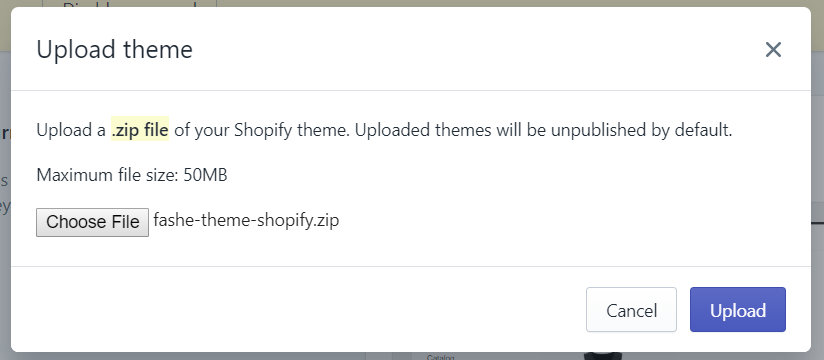
Once you've decided which file to select, click on Upload to add your theme file to the Themes page in the Shopify admin.
How to Upload a Theme File from Your Computer to Your iPhone
Step 1: Tap "Store"
Open your Shopify app. Then, tap the button
Storesection.Step 2: Click "Online Store"
From the
Sales ChannelsClick the buttonOnline Storesection.Step 3: Tap "Manage Themes"
In the third step, tap
Manage themes.Step 4: Click "Upload Topic"
On this screen, you'll see
More themesarea. Once you've seen it, tapUpload Theme.Step 5: Click "Choose File"
The "Upload Topic" window will appear; click
Choose a fileto select the file you want to upload. Remember to rename that file to.zipbefore selecting it.Step 6: Click "Upload"
Once you've finished selecting a file, click "Upload" to add your theme file to the folder
Themes Pagein the Shopify admin.
To upload a theme file from your computer on Android
Step 1: Tap "Store"
Open your Shopify app. Then, tap the button
Storesection.Step 2: Tap "Online Store"
From the
Sales ChannelsClick the buttonOnline Storesection.Step 3: Tap "Manage Themes"
In the third step, tap
Manage themes.Step 4: Click "Upload Topic"
On this screen, you'll see
More themesarea. Once you've seen it, tapUpload Theme.Step 5: Click "Choose File"
In the "Upload Topic" window, click
Choose a fileto select the file you want to upload. Remember to save the file in .zip format before selecting it.Step 6: Click "Upload"
When you're done selecting a file, tap
Uploadto add your theme file to the Themes page in the Shopify admin.
We hope this tutorial will be helpful to you and your team when adding a theme to your Shopify admin.
Si quieres conocer otros artículos parecidos a 4 pasos para subir un archivo de tema desde tu ordenador en Shopify puedes visitar la categoría Ayuda y Soporte.
 Español
  English
  Português do Brasil