
How to Import Elementor Templates? (Elementor Template Kits)

Elementor Template Kits are an incredibly powerful and efficient way to build professional websites in WordPress. They offer a complete set of pre-designed pages (Home, Services, Contact, etc.), global styles, and often multimedia assets—all ready to import and customize with Elementor. If you already have a kit and need help installing it, you've come to the right place!
This guide will walk you through the current process of installing a Elementor Template Kit, ensuring that your project comes to life without any complications.
Prerequisites
Before you begin, make sure you have the following:
- WordPress Installed: Your WordPress website should be up and running.
- Elementor (Free Version) Installed and Activated: You can download it from the WordPress repository.
- Elementor Pro Installed and Activated: To use most of the kits and their advanced features, Elementor Pro is essential. At Pillbanana We offer you access to the original, officially licensed plugin for $6.99 per year.
- "Envato Elements" Plugin (Free): Although not all kits require it, many (especially those downloaded from Envato Elements) use it to simplify the import process. It's a good idea to have it installed and activated. You can find it in the WordPress repository.
Step 1: Import the Template Kit Directly into Elementor
The process of importing Elementor kits has been greatly simplified. Modern kits usually come as a single file .zip which is imported directly from the Elementor interface, without the need for additional plugins such as the former "Envato Elements.".
- From your WordPress dashboard, go to Elementor > Tools.
- Click the tab "Website Templates".
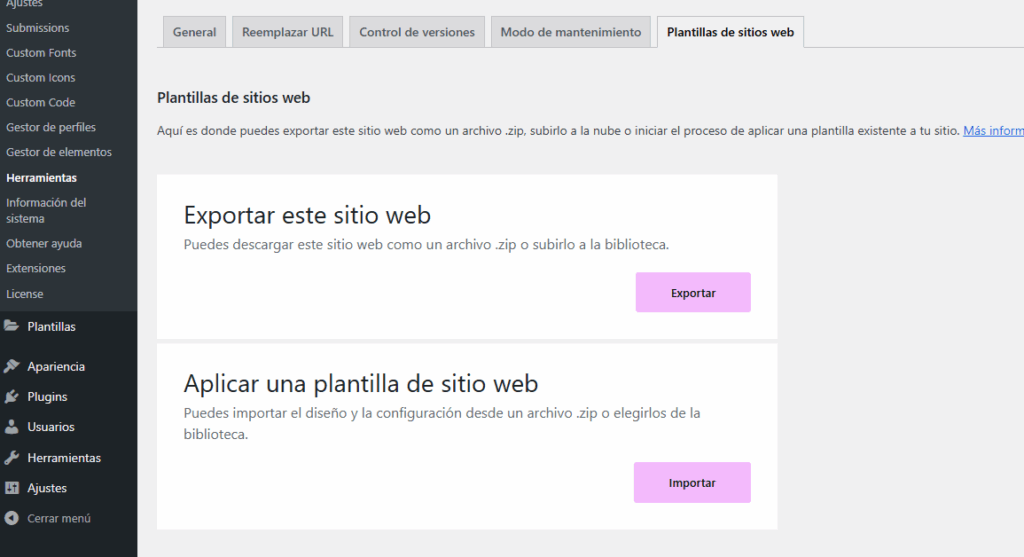
- In the "Import Template Kit" section, click the button "Import Kit".
- A window will open. Click on "Drag and drop your .zip file here" or at "Select the file" to find the file
.zipfrom your kit to your computer. - Once you've selected it, click "Next".
- Elementor will analyze the kit: It will show you a list of all the components it contains (templates, global settings, fonts, etc.).
- Recommendation: Check all the boxes to import the complete kit. This includes:
- Site Settings: Global colors, global fonts, typography, Elementor settings, etc.
- Templates: Headers, footers, pages, loops, etc.
- Contents: Demos of pre-designed pages and blocks.
- Click on "Import".
The import process may take a few minutes, depending on the size of your kit and your server's speed. Once it's complete, you'll see a success message.
Step 2: Review and Configure Global Settings
After importing the kit, it's essential to review the global settings to ensure your site has the correct design foundation and to apply your kit's style.
- From your WordPress dashboard, go to Elementor > Site Settings.
- Here you can view and adjust the items that were imported with your kit:
- Global Colors: Define your site's primary, secondary, text, and accent colors. The kit will have loaded its own colors.
- Global Sources: Set the main font for headings, paragraphs, etc.
- Typography: Detailed settings for H1–H6, paragraphs, links, etc.
- Design: Widget spacing, content width, and other general layout settings.
Step 3: Create Pages Using the Kit's Templates
Although the kit imports many templates, some pages may not be automatically activated as actual pages. To use them:
- From your WordPress dashboard, go to Pages > Add New.
- Give your new page a title and click "Edit with Elementor".
- Once you're in the Elementor editor, click the folder icon (the Elementor Library) that you'll see in the center of the blank page or on the bottom bar.
- Go to the tab "My Templates".
- Find the page template you want to use (for example, "Home Page 1," "About Us") and click "Insert".
- Confirm the import of the document settings if Elementor prompts you to do so.
Repeat this process for all the main pages you want to create using the templates in your kit.
Step 4: Set Up Headers and Footers
If your kit includes header and footer templates, you'll need to enable them so they appear throughout your site.
- From your WordPress dashboard, go to Templates > Theme Builder.
- Here you'll find the sections for Header y Footer. Your kit has probably already created entries here.
- Click on "Edit" in the Header/Footer template of the kit you want to use. This will open the Elementor editor.
- In the Elementor editor, click the up arrow icon (document settings) in the lower-left corner of the Elementor panel.
- Click on "Display Settings".
- Add a condition for "The entire site" so that your header/footer is applied site-wide. You can be more specific if you want a different header for certain pages.
- Click on "Save and Close".
Repeat this process for the footer.
Step 5: Customize Your Content and Connect Elements
Now comes the fun part! You already have the structure and basic design. It's time to:
- Change text: Edit all headings, paragraphs, buttons, and calls to action with your own content.
- Replace images: Upload your own photos and graphics to reflect your brand.
- Adjust colors and fonts: Even though you've already configured the global settings, you can make specific adjustments to individual sections or widgets.
- Connecting forms: If the kit includes forms (Contact Form 7, Elementor Forms), make sure they are configured to submit the data correctly.
- Add your menu: Go to Appearance > Menus In WordPress, create or select your main menu, and make sure your Elementor header template is displaying it correctly.
Additional Tips:
- Backup: Always make a full backup of your site before importing a kit, especially if it's a live site. This allows you to revert any unexpected changes.
- Permalinks: After importing, go to Settings > Permalinks in WordPress, and just click on "Save Changes" (without changing anything) to regenerate WordPress's rewrite rules. This may fix issues with broken links or "page not found" errors.
- Clear cache: If you're using a caching plugin (such as WP Rocket, LiteSpeed Cache, etc.) or your hosting provider offers caching, clear your site's entire cache after the import to ensure you see the most recent changes.
And that's it! By following these steps, you'll have your Elementor Template Kit up and running, ready to be customized and turned into the perfect website for your project. If you run into any problems, don't hesitate to contact our support team at Pillbanana—we're here to help!
Si quieres conocer otros artículos parecidos a ¿Cómo importar plantillas de Elementor? (Elementor Templates Kits) puedes visitar la categoría Ayuda y Soporte.
-
 Ricardo says:
 Which version of Elementor is this for? I already bought a template, but I couldn't use it because of the Elementor version...
 Ricardo
 Leave a Reply
 Español Español
  English
  Português do Brasil
Hi, where it says "Elementor > Installed Kits," it should say "ElementoS > Installed Kits." I've been going crazy trying to find that option in the Elementor menu.