
Step-by-Step Guide to Creating WordPress Forms with Dropdown Fields

Do you want to create WordPress forms that are clearer, faster, and easier to fill out? A great way to do this is by using drop-down fields.
WordPress forms with drop-down fields allow users to choose an option from a predefined list, preventing errors and speeding up the process. Instead of typing, they simply click and select. This small improvement can make a big difference in the user experience and significantly increase conversions.
In this guide, we'll show you step by step how to create WordPress forms with drop-down fields using an intuitive and very easy-to-use tool.
Whether you're creating contact forms, registration forms, or order forms, forms with drop-down fields will help you keep your information organized and improve user interaction on your site.
- What are drop-down menus, and why should you use them?
- Process Overview
- Step 1: Install the best form plugin
- Step 2: Create a new form
- Step 3: Add the drop-down field
- Step 4: Configure Options and Conditional Logic
- Step 5: Customize notifications and messages
- Step 6: Embed the form on your site
- Step 7: Publish the form
- Bonus: Creative Ideas for Using Drop-Down Menus
What are drop-down menus, and why should you use them?
A drop-down field allows the user to select an option from a predefined list. When the user clicks the field, a menu with the available options appears.
You can use these fields in forms such as:
- Newsletter Subscriptions
- Contact Forms
- Event Registrations
- Product Orders
Benefits of drop-down menus:
👉 More consistent data: You avoid invalid or misspelled responses.
👉 Dynamic conditions: You can display other fields based on the option the user selects.
👉 Shorter forms: You can group several options into a single field, making the form look simpler.
Process Overview
- Install the Best Form Plugin
- Create a New Form with WPForms
- Add the drop-down field
- Configure Options and Conditional Logic
- Customize Notifications and Confirmations
- Embed the form on your site
- Submit the form
- (Bonus) Creative Uses for Drop-Down Menus
Step 1: Install the best form plugin
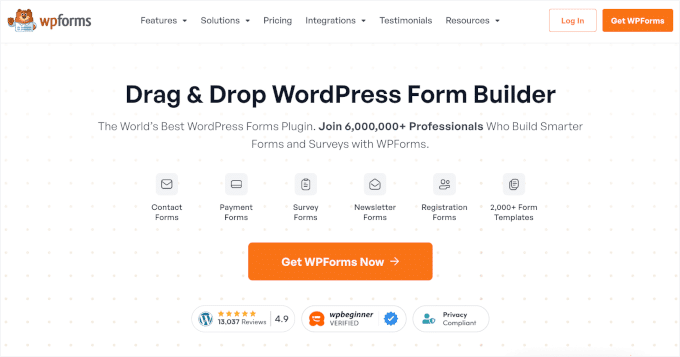
The recommended plugin is WPForms, one of the most comprehensive and user-friendly options. It has over 2,000 templates and lets you create forms in minutes.
Although the free version (WPForms Lite) already includes drop-down fields; the premium version is recommended for access to advanced features such as conditional logic.
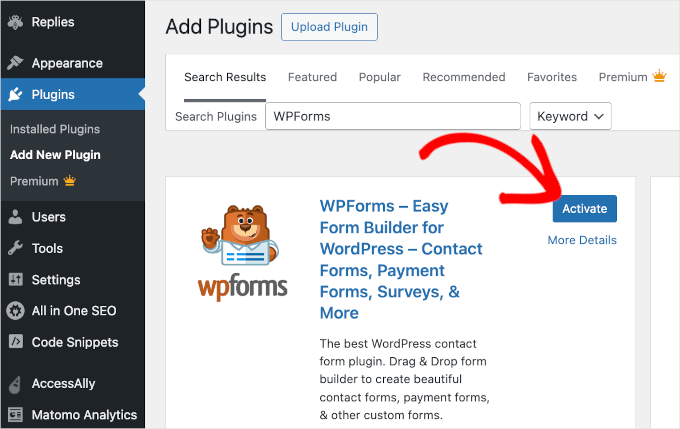
From your WordPress dashboard, go to Plugins > Add New, search for WPForms, click “Install,” and then click “Activate.”.
Step 2: Create a new form
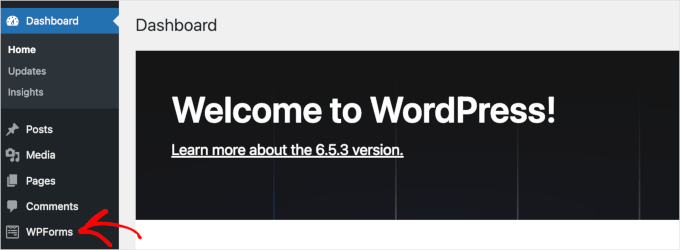
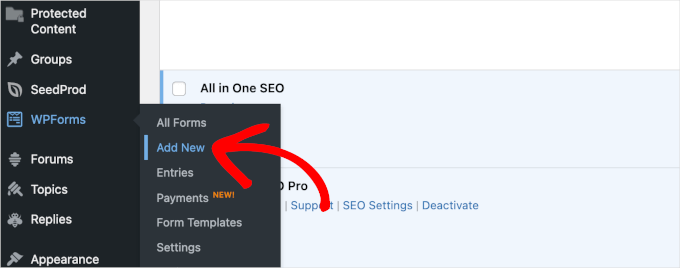
Once the plugin is activated, you'll see the menu for WPForms In your WordPress dashboard, go to WPForms > Add New.
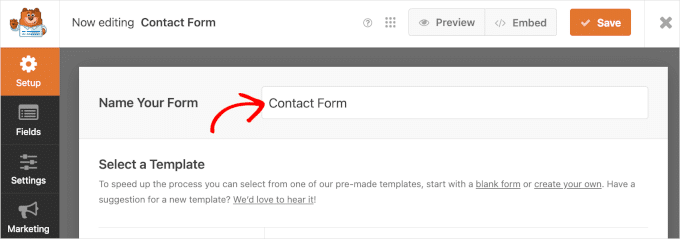
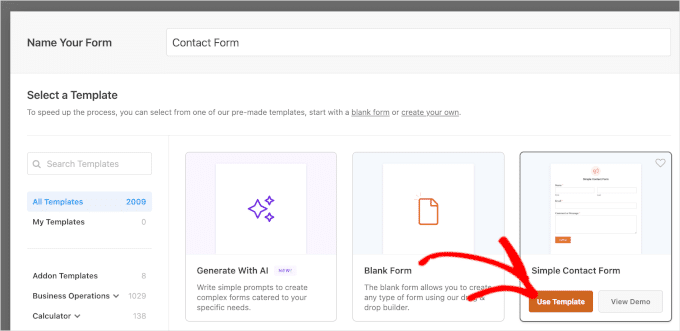
Give your form a name (for example, “Contact Form”) and choose a template. In this case, we’ll use “Simple Contact Form.”.
Step 3: Add the drop-down field
In the WPForms visual builder, you'll see the available fields on the left and a preview of the form on the right.
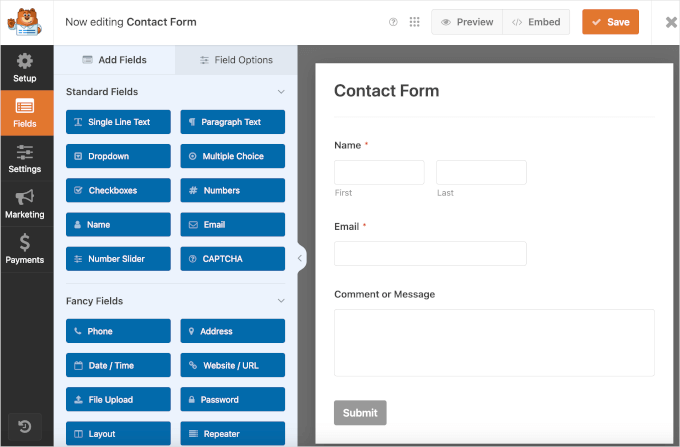
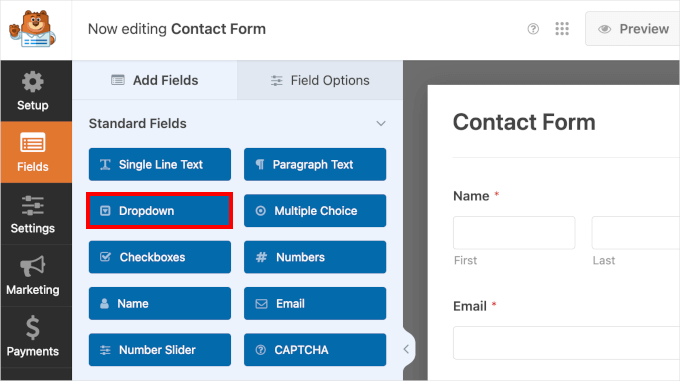
Drag the Dropdown field and drop it where you want to place it—ideally before the message field—to maintain a logical order.
On the right side of the panel, you'll see a drop-down field on your contact form. You can hover your mouse over the field to access its settings, which include:
- A copy button
- A delete button
- A «Click to edit» prompt»
- A «Drag to reorder» prompt.
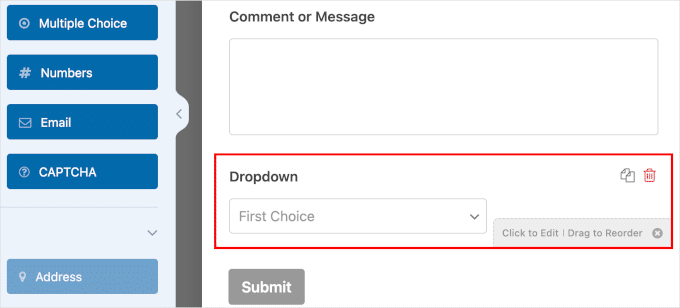
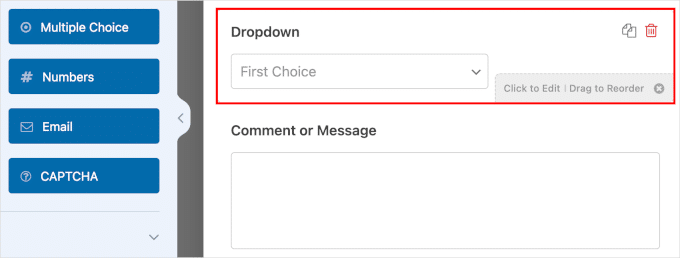
Using the drag-and-drop feature, move the drop-down field above “Comment or Message.”.
By placing the “Comment or Message” paragraph field right before the submit button, you create a smoother flow for the form-filling process. It also makes the drop-down menu more visible so users don’t overlook it.
🚀 Gravity Forms: 10 reasons why you should have it to create your forms in WordPress
Step 4: Configure Options and Conditional Logic
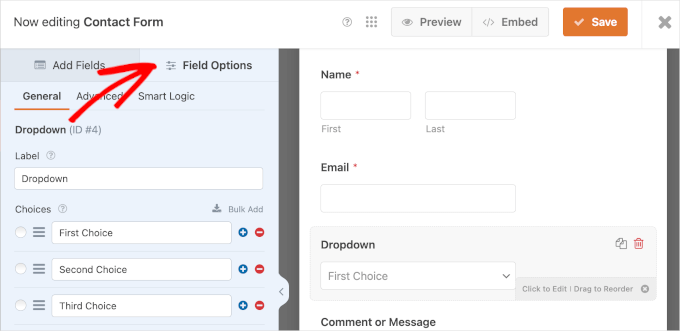
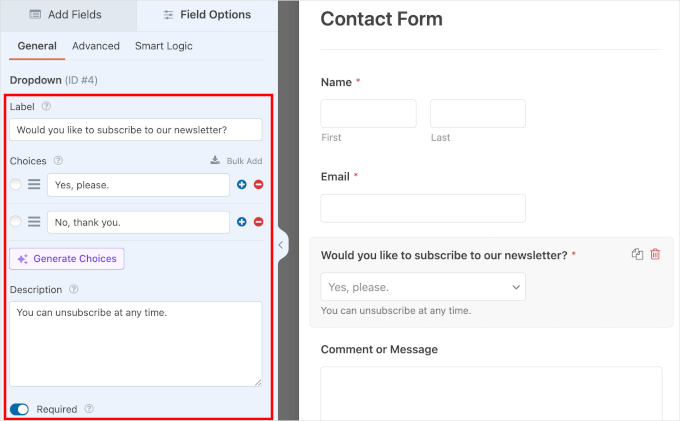
Click the drop-down menu to customize it. In the general options, you can:
- Change the label (e.g., "Would you like to subscribe to the newsletter?")
- Add options (e.g., Yes, please / No, thank you)
- Add a brief description (e.g., You can unsubscribe at any time)
- Mark the field as required
Conditional Logic
Conditional logic lets you display additional fields based on the selected option. For example, if someone says “Yes” to the newsletter, you can display another field so they can choose how often they want to receive emails.
To enable this:
- Add a new field (another drop-down menu, for example).
- Click on that field > Smart Logic tab > check “Enable conditional logic.”.
- Set the condition (e.g., Show this field if the previous one says “Yes, please”).
Step 5: Customize notifications and messages
From the Settings > Notifications tab, you can specify who receives a notification when someone submits the form.
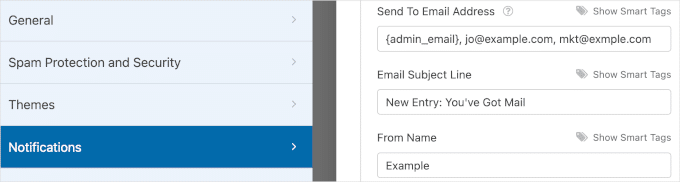
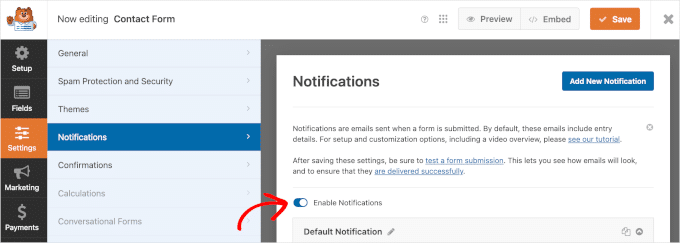
By default, the email is sent to the site administrator, but you can add additional recipients.
You can also customize the confirmation message that the user will see after submitting the form. You have three options:
- Display a message on the screen
- Redirect to a page on the site
- Redirect to an external URL
Don't forget to click Save.
Step 6: Embed the form on your site
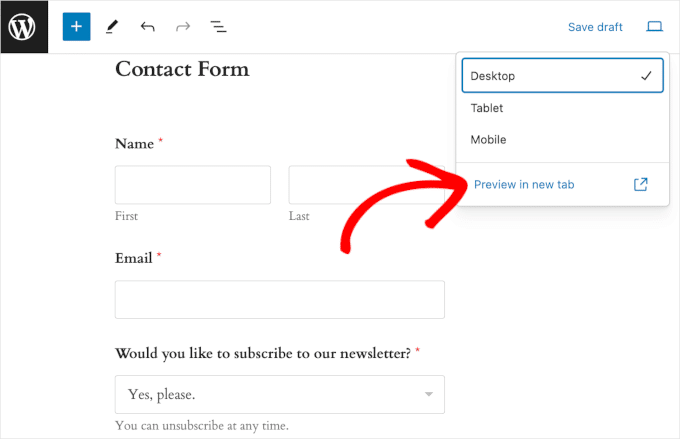
Click "Insert" in the builder. You can choose from:
- Insert it into an existing page
- Create a New Page
Next, the WordPress block editor will open. Just look for the WPForms block, insert it, and select the form from the drop-down menu.
🚀 How to improve the 404 page of your WordPress site (complete guide)
Step 7: Publish the form
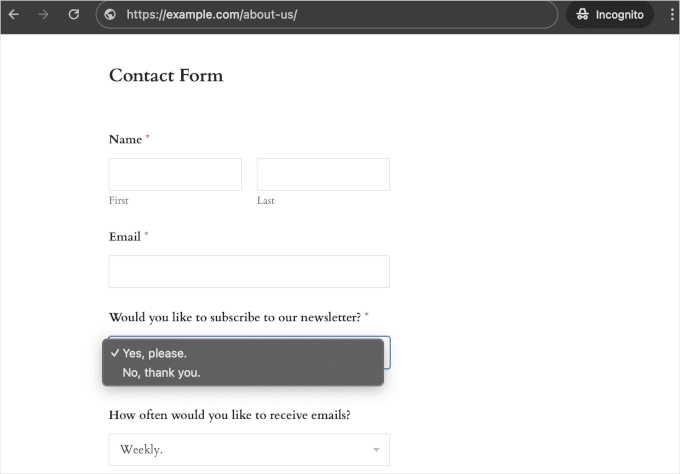
Before publishing, you can preview how the form looks on different devices. If everything looks good, click Update or Publish.
All done! You now have a form with drop-down fields up and running on your WordPress site.
🚀 Crocoblock: Everything you need to know to enhance your projects with Elementor
Bonus: Creative Ideas for Using Drop-Down Menus
Drop-down menus can be used in many ways beyond contact forms. Here are some useful and creative ideas:
- Product configurators: allow users to select color, size, material, or other custom attributes.
- Reservations and Appointments: Make it easy to choose a date and time for appointments, consultations, or services.
- Location by region: Add fields to select country, province, and city—useful for delivery services or localized forms.
- Questionnaires or tests: Use multiple-choice questions in assessment forms, online courses, or surveys.
And best of all: at Pillbanana you can get WPForms Pro and many other premium plugins with 100% licenses that are legally compliant with the GPL.

We also offer advanced add-ons to expand the functionality of your forms, and monthly or annual subscriptions that give you access to hundreds of tools to enhance your site.
If you want to create professional, efficient, and visually appealing forms, we have everything you need to get started.
Frequently Asked Questions About Creating WordPress Forms with Drop-Down Fields
Do I need a paid plugin to use drop-down fields in WordPress?
Not necessarily. Some free plugins, such as WPForms Lite, allow you to use drop-down fields. However, for advanced features such as conditional logic or integrations, a premium version is recommended.
Can I use a drop-down menu to display different options based on the user's selection?
Yes, that's done using conditional logic. For example, if a user selects "Yes" in a field, you can automatically show them another related question.
Do drop-down menus work well on mobile devices?
Yes, most plugins, such as WPForms, generate responsive 100% forms that adapt perfectly to cell phones and tablets.
Can I integrate my form with email marketing tools?
Yes. Premium plugins like WPForms Pro let you connect your form to Mailchimp, ActiveCampaign, ConvertKit, and other email services.
Where can I get WPForms Pro and other plugins with advanced fields?
At Pillbanana You can access WPForms Pro and many other premium plugins under the GPL license, with affordable subscriptions or as one-time purchases.
Si quieres conocer otros artículos parecidos a Cómo crear formularios de WordPress con campos desplegables paso a paso puedes visitar la categoría Plugins Wordpress.
 Español Español
  English
  Português do Brasil
Leave a Reply