
The Events Calendar shortcodes: all of them and how to use them
Learn all about The Events Calendar plugin shortcode: the whole list and how to use each one. Here's everything you need to know.
The Events Calendar It is one of the most popular and robust calendar plugins for WordPress. The plugin can display past and future scheduled events in chronological order. As such a popular plugin, built to the highest industry standards, it comes with multiple shortcodes to help you get the most out of it.
In this article, we're going to learn more about The Events Calendar plugin shortcode, We'll explore all the shortcodes available in the plugin and we provide some examples of how to use them.
What are shortcodes for WordPress?
A shortcode, as the name suggests, is text enclosed in square brackets that executes a longer piece of code or function on your website’s backend, behind the scenes. You can use a shortcode with a Gutenberg block or through the code panel in the Classic Editor.
Most WordPress plugins come with a set of shortcodes that are specific and unique to them, and The Events Calendar plugin's shortcode is no exception.
🚀 WordPress Calendar Plugin: top 5
How to Use WordPress Shortcodes
As mentioned earlier, you can insert shortcodes on any page, post, or custom post type within square brackets.
[shortcode]You can also use shortcodes within PHP template files like this:
<?php echo do_shortcode(\"[shortcode]\"); ?>Remember that the plugin must be active for its shortcodes to work and display the content. Since each plugin has its own unique shortcodes, you'll need to know what to enter inside the square brackets and what the expected results are.
You can also use additional parameters in the shortcode to further customize the output. For example, the parameter [tribe_community_events] will display all upcoming events, while the shortcode [tribe_community_events id="your_venue_id"] It will display all events based on the venue ID you entered.
Keep in mind that entering a random set of letters or numbers won't work and won't execute any functions. Therefore, knowing the Events Calendar plugin shortcode and its parameters is essential for everything to work correctly.
The Events Calendar plugin shortcode
The Events Calendar, one of the WordPress plugins One of the most popular tools for adding a calendar to your website, it comes with many useful shortcodes.
Each shortcode was developed for a specific reason, and in the table below we’ll describe their purposes. There are a couple of ways to use The Events Calendar plugin’s shortcode. The first uses the plugin’s Gutenberg block, and the second uses the shortcode block.
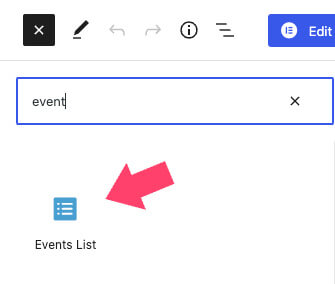
Initially, both methods will do the same thing, so choosing one or the other is a matter of personal preference.
The Events Calendar plugin shortcode: the list
We prefer the shortcode method because it offers many more customization options and parameters.
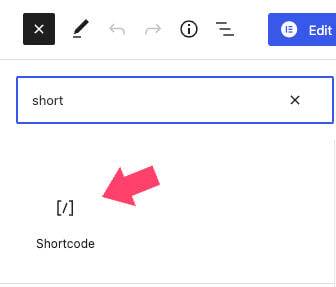
To use the method Gutenberg Editor Click the + icon and add a new shortcode block. Alternatively, if you're still using the button classic editor Switch to code view and paste the code there.
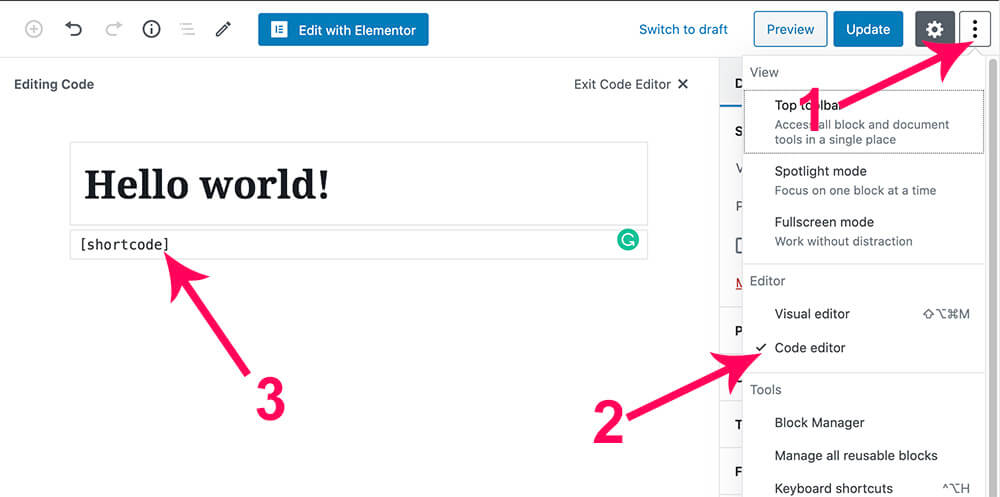
Here are all the available shortcodes for The Events Calendar plugin:
| SHORT CODE | DESCRIPTION | PLUGIN |
|---|---|---|
[tribe_mini_calendar] | Displays a mini version of the "Month View" of the calendar. | The Events Calendar Pro |
[tribe_events_list] | Displays the advanced list widget that highlights events and event information in a List View. | The Events Calendar Pro |
[tribe_featured_venue] | Lists upcoming events in a specific location. | The Events Calendar Pro |
[tribe_event_countdown] | Displays a countdown to the start of an event. | The Events Calendar Pro |
[tribe_this_week] | Horizontal or vertical view of the events taking place this week. | The Events Calendar Pro |
[tribe_events] | Displays the full calendar. The default view is determined by the option selected in the plugin settings. | The Events Calendar Pro |
[tribe_event_inline] | Display a single event in a post, page, sidebar, footer, or custom template. It accepts parameters that let you customize which event details to display and in what order. | The Events Calendar Pro |
[tribe-user-event-confirmations] | Display users who have confirmed that they will attend an upcoming event. | Event Tickets |
[tribe-tpp-success] | When you use Event Tickets Tribe Commerce, PayPal will require a success page on your site to complete the payment process. | Event Tickets |
[tec_tickets_checkout] | Display the content of the checkout page using Tickets Commerce. | Event Tickets |
[tec_tickets_success] | Specify the content of the success page using Tickets Commerce. | Event Tickets |
[tribe_tickets][tribe_tickets] | Display the posts you've created for any event on any WordPress page or post. Optionally display protected content. | Event Tickets Plus |
[tribe-user-event-confirmations] | Display a list of an attendee's upcoming events. | |
[tribe_community_events_title] | If you don't use permalinks, you can embed the body content and title from the Community Events template into a page. | Community Events |
[tribe_community_events] | Embed the form that allows users to submit events to your calendar. | Community Events |
[tribe_community_events view="my_events"] | Displays a list of events that the currently logged-in user has added to the calendar. | Community Events |
[tribe_community_events view="edit_event" id="your_event_id"] | Displays the edit screen for a specific event when used with the event's post ID. | Community Events |
[tribe_community_events view="edit_venue" id="your_venue_id"] | It displays the edit screen for a specific location when used with the location's post ID. | Community Events |
[tribe_community_events view="edit_organizer" id="your_organizer_id"] | Displays the edit screen for a specific organizer when used with the organizer's position ID. | Community Events |
[tribe_community_tickets view="attendees_report" id="your_event_id"] | You can view a report of the attendees who have registered for a specific event that a user has added to the calendar. | Community Tickets |
[tribe_community_tickets view="sales_report" id="your_event_id"] | Displays a ticket sales report for a specific event that a user has added to the calendar, showing the number of tickets sold and the revenue from those sales. | Community Tickets |
[gigpress_shows] | Show upcoming concerts, shows, and performances on your site using GigPress | GigPress |
Additional Shortcodes for Extensions and Plugins
Most popular plugins, such as The Events Calendar, have extensions and add-ons developed by third-party companies to expand their functionality. One specific extension that caught our attention is The Events Calendar Shortcode and Templates Pro.
The plugin will add many more shortcodes and templates that you can use to customize the appearance of The Events Calendar plugin. The plugin's default shortcode is:
[events-calendar-templates template="default" style="style-1" category="all" date_format="default" start_date="" end_date="" limit="10" order="ASC\" hide-venue=\"no\" time=\"future\" featured-only=\"false\" columns=\"2\" autoplay=\"true\" tags=\"\" venues=\"\" organizers=\"\" socialshare=\"no\"]You can customize any of its settings using the attributes listed below:
| Attribute | Value |
|---|---|
| template |
|
| style |
|
| category |
|
| date_format |
|
| start_date_end_date |
|
| limit |
|
| orders |
|
| hide_venue |
|
| time |
|
| functions only |
|
| columns |
|
| autoplay |
|
| tags |
|
| venues |
|
| organizers |
|
| socialshare |
|
This is what the calendar looks like when you change the template setting to the timeline attribute:

You can also use the plugin's native shortcode (and its parameters) to display the full calendar template.
[ect-calendar-layout date-format="d F Y" show-category-filter="true" limit="10"]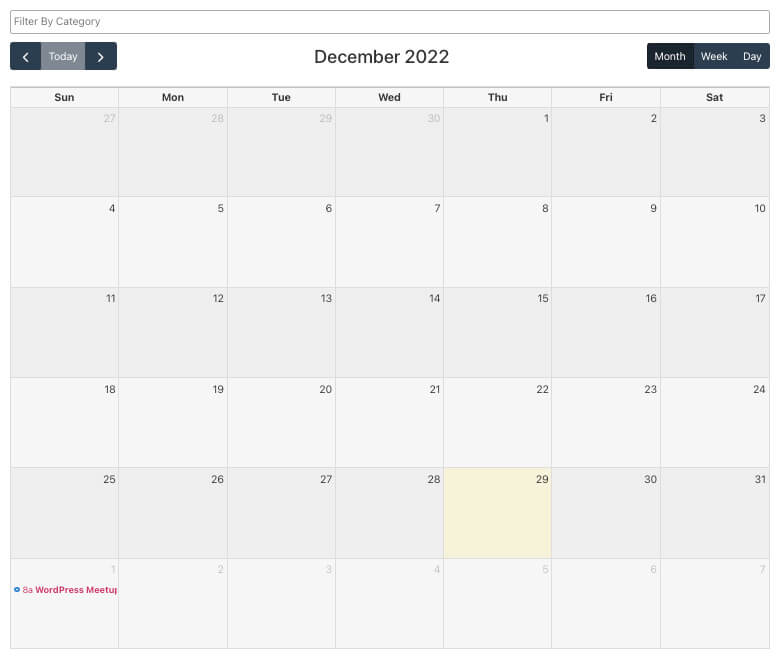
These are the available customization options:
| Attribute | Value |
|---|---|
| limit |
|
| date_format |
|
| show-category-filter |
|
Once you've customized the shortcode, be sure to save your changes and revisit the page.
Conclusion
In this article, we explored the different shortcodes for The Events Calendar plugin and learned how to use them on your WordPress website.
Leave us a comment and let us know which shortcodes from the lists above you use, or if you have any additional questions.
Si quieres conocer otros artículos parecidos a The Events Calendar shortcode: todos y cómo usarlos puedes visitar la categoría Plugins Wordpress.
 Español Español
  English
  Português do Brasil
Leave a Reply