
Heat Maps in WordPress: How to Set Them Up Step by Step (2 Easy Ways)

When you first start working on WordPress websites, many decisions are made based on intuition, without concrete data on visitor behavior. It’s not until you implement heat maps that you gain a real understanding of how people interact with the site: which areas they click on, how far they scroll, and which elements truly capture their attention.
For those looking to optimize their website but unsure of what works and what doesn't, heat maps provide clear answers.
After analyzing the many available tools, we have identified two simple and effective methods for setting up heat maps in WordPress: Microsoft Clarity y UserFeedback.
This guide explains step by step how to implement both options. Don't miss it!
Why do you need to set up heatmaps in WordPress?
Heat maps are visual tools that provide a precise understanding of how users interact with a WordPress website. They use a color-coding system to identify the most active and least-visited areas of each page:
- The colors red, orange, and yellow represent the “hot” areas—that is, the areas where users click, tap, or spend the most time.
- Shades of blue and green indicate “cold” areas, with little or no interaction.
This type of visualization eliminates the guesswork about what works and what doesn't on the site, providing a clear and direct view of visitor behavior.
Thanks to heat maps, it is possible to answer key questions such as:
- Do people click on call-to-action (CTA) buttons?
- Do users scroll far enough to see all the content?
- Are there clicks on elements that aren't interactive?
With this data, you can make strategic adjustments: identify what to improve, change, or redesign to attract more attention, increase conversions, or generate more inquiries.
Below are two effective methods for implementing heat maps in WordPress. One is completely free, and the other offers advanced features in its premium version.
🚀 How to create WordPress forms with dropdown fields step by step.
Quick Index
- Step 0: Set up your WordPress site
- Method 1: Microsoft Clarity (Free)
- Method 2: UserFeedback (Ideal for maps + surveys)
- Bonus: How to Get the Most Out of Heat Maps 🔥
Step 0: Set up your WordPress site
Before you start using heat maps, it's essential to make sure your site is properly set up to avoid errors and make implementation easier.
If this is your first time implementing heat maps, it is best to test them in a staging environment. This type of environment is an exact copy of the live website, allowing you to test new features without affecting the user experience or compromising the stability of the production site.
Perform a backup copy full backup of the site before installing any new plugin It's a best practice. If something goes wrong during the process, you can restore the site without losing any data or settings.
Finally, it is important to keep in mind that heat maps do not replace other analytical tools; rather, they complement them. Their true value lies in combining them with general metrics (such as those from Google Analytics) and direct feedback tools, thereby providing a more comprehensive view of visitor behavior and their actual needs.
Method 1: Set up heat maps with Microsoft Clarity (free)
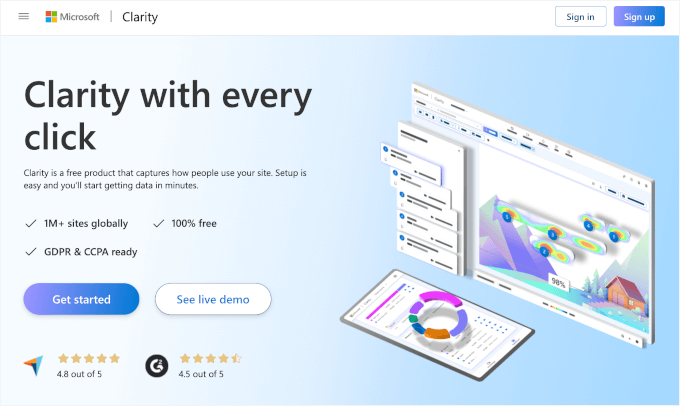
Microsoft Clarity It is a completely free tool that allows you to track sessions and view heat maps in real time. It is especially useful for blogs, personal websites, startup projects, or small businesses that want to better understand how visitors interact with their pages.
This solution not only tracks clicks and scrolls, but also identifies behaviors such as repeated clicks out of frustration (rage clicks) and excessive scrolling. In addition, it complies with regulations such as the GDPR, as it collects data anonymously.
Step 1: Create a free account on Microsoft Clarity
- Go to the official Microsoft Clarity website: https://clarity.microsoft.com
- Click “Get Started.”.
- Sign in using a Microsoft, Google, or Facebook account.
- When you log in, you will be prompted to create a new project. To do so, you must fill in the following information:
- Project Name (for example, the site name).
- Website URL that will be monitored.
- Industry or sector to which the site belongs, by selecting an option from the drop-down menu.
- Finally, click “Add New Project.”.
Step 2: Install the Microsoft Clarity plugin in WordPress
- Log in to the WordPress admin panel.
- Go to Plugins > Add New.
- In the search bar, type “Microsoft Clarity.”.
- Click “Install Now,” and then click “Activate” once the installation is complete.
After activating the plugin, you'll see the option to link it to the project you previously created in Clarity. Simply select the project from the drop-down menu to complete the integration.
⚠️ Important: If the site uses a caching plugin (such as WP Rocket, W3 Total Cache, among others), you must clear the cache after connecting Clarity. Otherwise, the site verification process could take several hours.
Step 3: Access the heat maps from the Clarity dashboard
Once configured, Clarity will automatically begin tracking visitor activity, without the need to insert code manually or modify theme files.
To access the heat maps:
- Log in to the Microsoft Clarity dashboard.
- Select the appropriate project.
- Go to the tab “Heatmaps” (Heat maps).
This section will display the pages on the site that already have enough activity to generate a map. When you click on any of them, you'll be able to view three types of reports:
- Click on the map: shows the exact areas where users click.
- Scroll map: indicates how far they have scrolled down the page.
- Attention Map: highlights the areas that receive the most attention (warm colors = greater interest).
These visualizations make it possible to quickly identify which parts of the site generate the most interaction, which ones go unnoticed, and whether there are key elements that should be repositioned or highlighted more prominently.
Method 2: Configure heat maps with UserFeedback

UserFeedback, developed by the MonsterInsights team, is a tool that combines heat maps with feedback forms and advanced segmentation options. It is designed for growing websites, online stores, digital marketing agencies, and projects that need a higher level of control over their user data.
In addition to tracking clicks and movements, it allows you to launch targeted surveys based on visitor behavior, providing a deeper and more personalized understanding of their needs.
Step 1: Install and activate the UserFeedback plugin
- Go to the official UserFeedback website and sign up for an account.
- From the user dashboard, download the file
.zipfrom the plugin and copy the license key associated with the plan. - Log in to the WordPress dashboard and go to Plugins > Add New > Upload Plugin.
- Upload the file
.zip, install and activate the plugin. - Once activated, go to UserFeedback > Settings and enter the license key in the corresponding field to enable all features.
💡 Note: There is a free version of the plugin, but the heatmap feature is only available on the Elite plan or higher.
Step 2: Enable the heat map add-on
- Go to UserFeedback > Addons from the WordPress admin menu.
- Search for the add-on called “Heatmaps.”.
- Click “Install Addon” and then “Activate” to enable it.
This step is essential, since heat maps are not enabled by default after installing the plugin.
Step 3: Create a new heat map
Once the plugin is activated, you can start generating custom heat maps for specific pages on the site.
- Go to UserFeedback > Heatmaps.
- Click the “New Heatmap” button.
- In the pop-up window, select the page you want to analyze from the drop-down menu (for example, the home page, a landing page, or a blog post).
- Confirm by clicking “Create.”.
The system will immediately begin collecting interaction data for the selected page.
Step 4: View the heat map results
Once the system has collected enough information from visitors, you can access the generated map:
- Go to UserFeedback > Heatmaps and select the heatmap you want to analyze.
- On the analysis screen, you'll see key information such as:
- Clickable areas: where users click most often.
- Mouse movements: how to use the pointer to navigate the page.
- Device used: Comparisons of performance on PCs, tablets, and mobile devices.
- Advanced Segmentation: Filtering data by UTM campaigns, traffic source, channel, or device.
This information is particularly valuable for evaluating the performance of specific campaigns, the site's responsive design, or the effectiveness of calls to action based on visitor type.
Bonus: How to Get the Most Out of Heat Maps 🔥

Heat maps are valuable if you know how to use that information. Here are a few ideas:
👉 Identify where visitors drop off
If you notice that they aren't getting to the important content, move your buttons or key messages higher up.
👉 Detects user confusion
If users click on images or non-interactive text, consider adding buttons or links there.
You can also launch a quick survey to ask what they expected to find.
👉 Improve navigation
If they're jumping from page to page aimlessly, your navigation might not be clear. Simplify it and try it out yourself as if you were a new visitor.
👉 Make sure the CTAs are visible
Are your call-to-action buttons not getting any clicks? Change their color, text, or placement. And make sure they're visible on mobile devices.
🧪 Pro tip: Run A/B tests to compare design variations and see what works best. Check out our guide to A/B testing for WordPress.
What's next?
Now that you know how to use heat maps in WordPress, it's time to apply that knowledge to improve your visitors' experience and increase your conversions. Here are some helpful recommendations to get you started:
- What plugins a website uses: top 10 premium plugins
- What is the best WordPress theme for online store?
Remember: Heat maps not only show you what visitors are doing, but they also help you make smarter decisions based on real data.
Si quieres conocer otros artículos parecidos a Mapas de calor en WordPress: cómo configurarlos paso a paso (2 formas fáciles) puedes visitar la categoría Ayuda y Soporte.
 Español Español
  English
  Português do Brasil
Leave a Reply