
Ninja Tables Pro Plugin for WordPress - Tutorial and Review

In this post, we'll take an in-depth look at the plugin Ninja Tables Pro for WordPress, and we'll see if it measures up as one of the best table plugins for WordPress.
In addition, we'll examine its features, ease of use, and other aspects to see if Ninja Tables is the right plugin. In this article We'll review the Ninja Tables Pro plugin for WordPress.
What is the Ninja Tables Pro plugin?
Ninja Tables Pro is a WordPress plugin designed to make it easy to create and manage tables and lists of data on a WordPress website. With Ninja Tables Pro, you can create custom tables using a variety of layout options and formatting settings, and display the table data on a WordPress page or post using a shortcode or a widget.
The plugin also offers a number of additional features, such as the ability to import and export table data, integration with Google Sheets and Excel, the ability to search and filter the table, and the option to display the data in a paginated table or a non-paginated table. It is also compatible with most WordPress themes and is easy to use, even for those without experience in programming or web design.
So, the Ninja Tables Pro plugin is a WordPress plugin which lets you create beautiful, responsive tables for your website. Whether you need to display data from a spreadsheet or create a directory of products or services, Ninja Tables Pro makes it easy with its drag-and-drop interface. Here are some of the many tables you can create:
- Job Openings
- List of products on Amazon
- WooCommerce Product List
- Product Specifications
- WP Messages
- League Points
- Cryptocurrency
- Movie Review
- Prices
- Much more
The unlimited table styles you can create with the Ninja Table Pro plugin make it the most versatile and robust table plugin for WordPress.
Ninja Tables: Free vs. Pro
Ninja Tables Pro has many features that set it apart from other WordPress table plugins. You can get the Ninja Tables Pro plugin at the official website (for a minimum of $49), or through us for just $4.99.
Below are some of the key features offered by Ninja Tables Pro in both its free and premium versions:
Features of the free version:
- Creating and editing custom tables using a variety of design options and formatting settings
- Integration with Google Sheets to display real-time data
- Searching and Filtering Data in the Table
- Shortcode tags for displaying the table on a WordPress page or post
- Table widget to display the table in a sidebar or widget area
- Responsive design so that the table looks good on mobile devices
Premium Version Features:
- Import and export table data to and from Excel and CSV
- Integration with WPForms to create contact forms and collect data quickly and easily
- Option to display data in a paginated table or a non-paginated table
- Integration with Advanced Custom Fields to display custom data in the table
- Access to more design options and table styles
- Lifetime technical support and updates.
It's important to note that this is only a partial list of the features offered by Ninja Tables Pro. For a complete list of features in both the free and premium versions, we recommend visiting the plugin's website or consulting the plugin's documentation.
How to Use Ninja Tables Pro
Ninja Tables Pro is easy to use. First, you need to install and activate the plugin on your WordPress site. Once it's up and running, you can create tables by going to Ninja Tables > Add New Table in the WordPress dashboard.
Next, you can name your table and choose one of the following three layouts: Data Table, Product Table, or Directory Table. Once you've selected a layout, it's time to add data to the table.
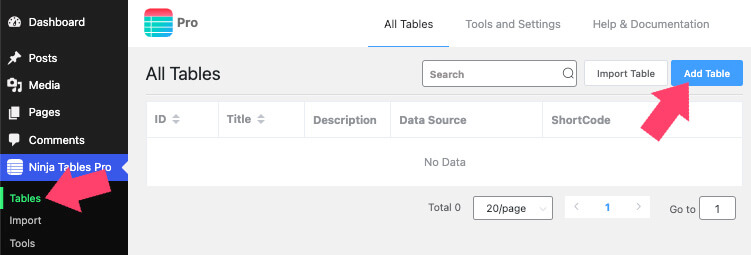
You can do this manually by entering data into the fields provided or by importing data from a CSV file. If you import data from a CSV file, click the button Import CSV and select the file from your computer.
Once imported, your data will appear in the table fields. Alternatively, you can choose one of the many pre-designed table templates and use it as a starting point. Once loaded, customize the table by adding or removing columns and rows.
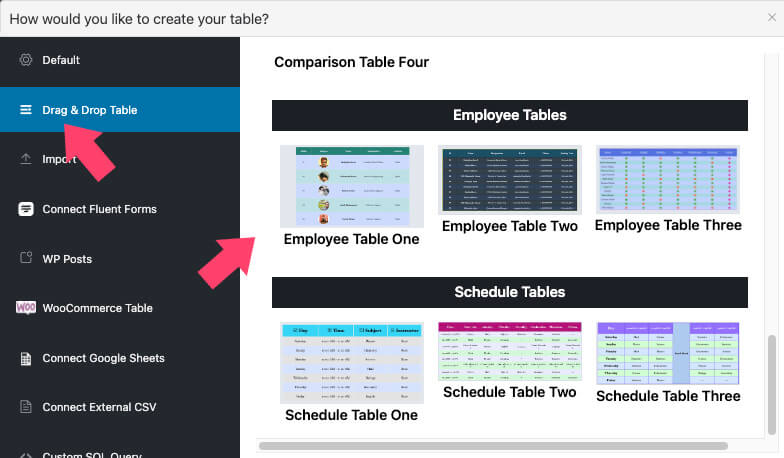
First, you'll need to clear the default values from the cells and enter your own. To do this, click any cell in the table and enter your custom value.

Now that your data has been entered (or imported), it's time to customize the look of your table. With Ninja Tables Pro, you can change the font size and color, column widths, background colors, and much more. Plus, you can add borders and shadows to give your table a more polished look.
Add items to the table
Within the table editor screen, you can use elements or style any part of the table, including columns and cells. On the left side of the screen, you'll see the workspace with three tabs: Elements, Settings y Responsiveness.
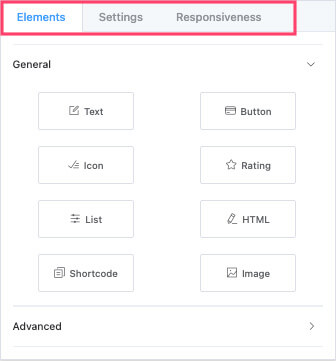
To add an item to the table, drag the item you want from the left sidebar to any cell in the table.
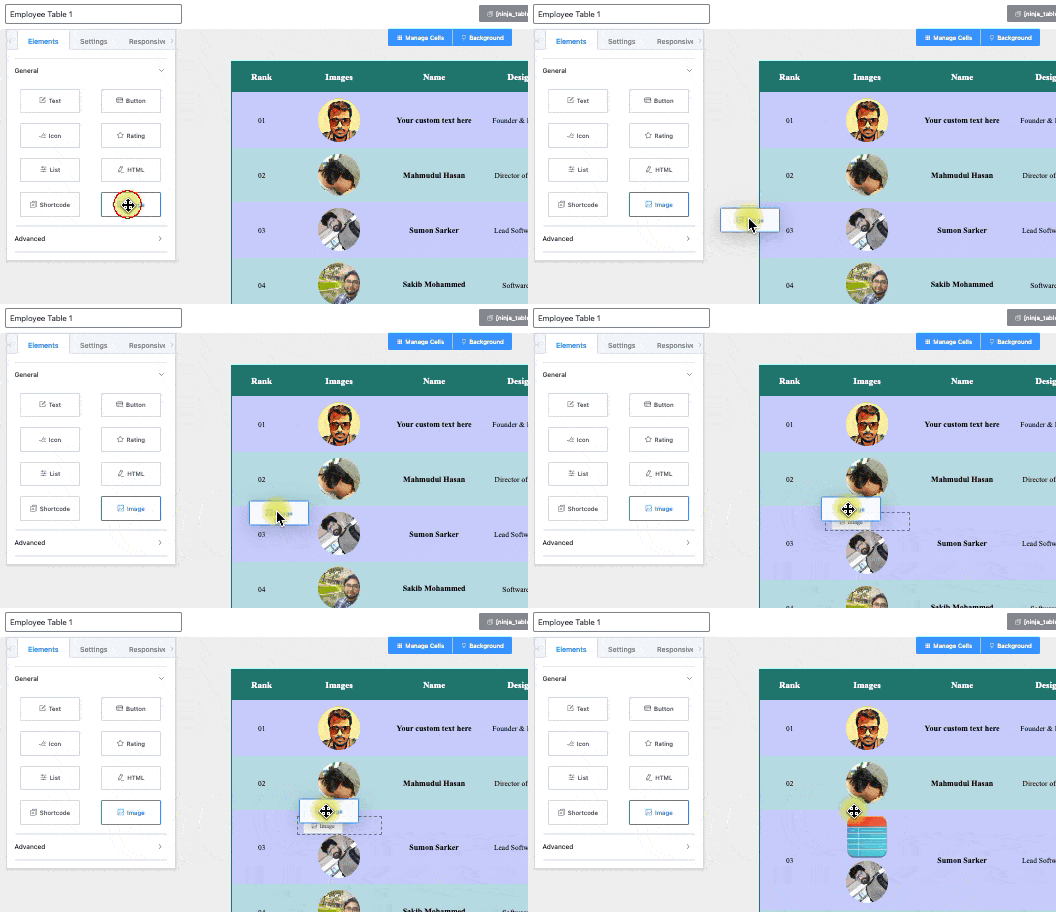
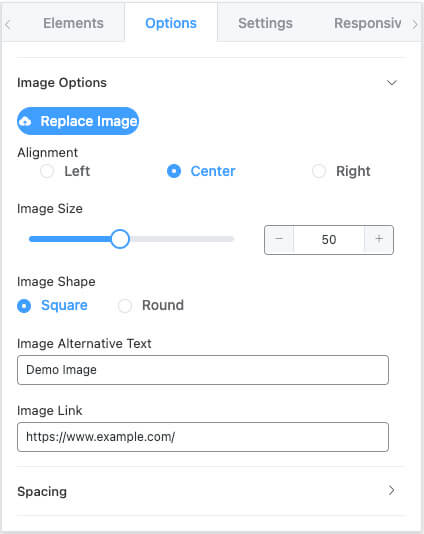
Once positioned, the element will be filled with the content of the default placeholder. You can then proceed to the Options to change any aspect of the work order.
For example, if you've added an image widget, go to the settings tab to select which image to display, its position, width, etc.
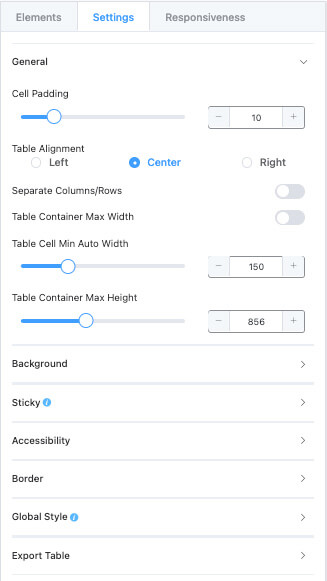
If you haven't selected any widgets or cells, use the Settings tab to customize the overall appearance of the table, such as alignment, background colors, padding and margin values, border color, etc.
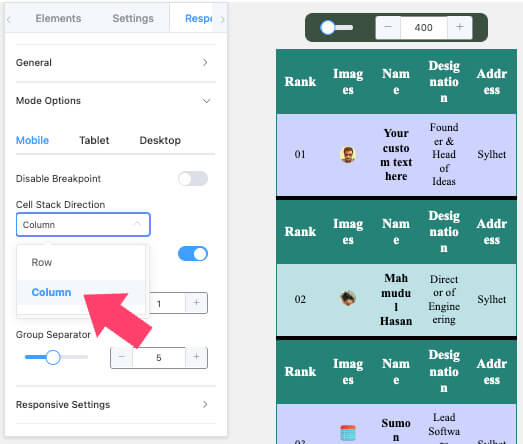
Finally, go to the tab Responsiveness to determine how the table should be displayed on mobile devices. By default, the table will adjust and look good on any screen size, and we recommend that you leave it that way.
However, enable the option Enable responsive table Feature disabled—if you want to disable the responsive part. You can also expand Mode Options to see how your table looks on different screen sizes.
In addition, you can change the custom behaviors and appearance for each screen size specifically. Since space is limited, the direction of the cell stack will be set to Row in the mobile view. You can change it to match the desktop view by selecting the option Column option Cell Stack Direction or Cell stack orientation.
Once you've reviewed the various styling options this plugin offers, save it and proceed to publish the table on your WordPress website.
Publish the table
Each table will have a unique shortcode that you can use to display the table on any page, post, or custom post type. You can copy the table's shortcode to the left of the Save button or next to the table's name in the menu Ninja Tables Pro -> Tables screen.
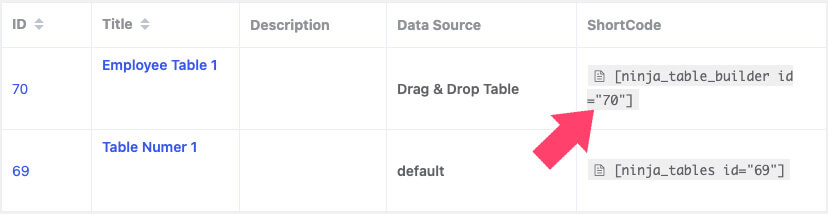
Once you've copied the shortcode, edit the page you want and add a shortcode block to the content. Then, paste the table shortcode and click "Publish" to make the changes live.

Revisit the page and make sure the table has been published correctly and that you're satisfied with how it looks. If you want to change the table, open the table editor, make your adjustments, and save it again. You don't need to replace the shortcode because it will be updated with the latest changes.
Conclusion
In conclusion, Ninja Tables Pro is a WordPress plugin designed to make it easy to create and manage tables and data lists on a WordPress website. It offers a wide range of design and formatting options for customizing tables, as well as the ability to import and export table data and integration with Google Sheets and Excel.
In addition, it's easy to use and compatible with most WordPress themes. The premium version also offers additional features such as integration with WPForms and Advanced Custom Fields, among others.
In short, Ninja Tables Pro is an excellent choice for anyone who needs to quickly and easily create and manage tables and data lists on a WordPress site.
To take full advantage of everything this plugin has to offer, you'll need to try out all of its features because of its great versatility.
Would you like to try the premium version of Ninja Tables for USD 3.99 and create and manage tables and data lists on your WordPress website?
Download Now Ninja Tables Pro For $4.99, just install it and enjoy an original product at the lowest price.
Remember that when you buy in Pillbanana you receive unmodified, clean and virus-free 100% files with all their updates absolutely free for one year.
Finally, keep in mind that you can subscribe to our club on a monthly or annual basis, and you can save more than $15,000 on premium plugins and themes. We currently offer more than 7,800 products, and with your subscription, you'll have unrestricted access to all of them.
Frequently Asked Questions About the Ninja Tables Pro Plugin
Can the Ninja Table Pro plugin integrate with Elementor?
To integrate Ninja Tables Pro with Elementor, you must first install and activate both plugins. Then, you can follow these steps to display a table created with Ninja Tables Pro on a page created with Elementor:
- Create a new page or post with Elementor and open the page in the Elementor editor.
- Drag the Elementor table element onto the page.
- Click the "Edit Table" button in the upper-right corner of the table element.
- In the pop-up window, select the "Ninja Table" option from the "Table Type" drop-down menu.
- Select the table you want to display from the "Table" drop-down menu.
- Click "Update" to save your changes and display the table on the page.
It's important to note that these are just a few examples of how to integrate Ninja Tables Pro with Elementor.
How can I add images to the table?
You can use the Image element to add custom images to each cell in the table.
Is it possible to combine cells and columns?
Yes, click the button Manage Cells Select multiple cells, rows, or columns by holding down the Shift key, and then click "Merge.".
Can you conditionally display rows or columns in the table?
In the option Table Configuration You can conditionally display any row or column within the tab Conditional formatting screen.
Si quieres conocer otros artículos parecidos a Ninja Tables Pro Plugin para WordPress - Tutorial y Revisión puedes visitar la categoría Plugins Wordpress.
 Español Español
  English
  Português do Brasil
Leave a Reply