
3 Ways to Remove the "Created with WordPress" Text from Your Website's Footer
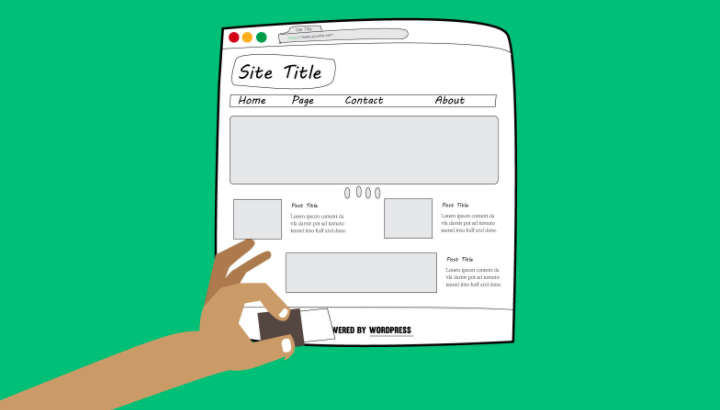
If you're looking to remove the WordPress-generated text from your website's footer, here's how to do it—stop searching... we've got everything you need right here.
Every new installation of a default WordPress theme comes with the text "Created with WordPress".
Many users prefer to delete this paragraph and its text.
In this article, we'll show you how to remove the "Created with WordPress" text from your website's footer—don't miss it!
Do you have permission to edit files?
When it comes to modifying software, it's generally a good idea to know whether it's legal to edit the files. Since WordPress was released under the GPL (General Public License), it is perfectly legal to edit and modify the files.
Because of this, the web agencies modified the code and added their text to the credits as follows:
‘Created with WordPress by [Company Name]’
If you have a business website, we recommend that you remove this text.
As we mentioned earlier, the Created with WordPress It is located at the bottom of the footer.
Although the text remains reasonably visible to your visitors at the bottom of the website, here are just a few reasons to remove it:
- A cleaner look: Many designers would like to remove the text to create a more uncluttered website.
- Custom text: You can enter your own custom text. As mentioned earlier, a web design agency will be listed with a link to your website.
- Hide the platform: You can hide the text if you don't want your visitors to know that you use WordPress.
- White-label: when you develop a custom CMS for other companies.
Whatever your reason, in the next section we'll show you how to hide the text "Created with WordPress" in different ways.
Remove the text "Created with WordPress"
There are several ways to remove the "Created with WordPress" text from your website's footer, and in this article, we'll show you how.
Let's start with the first method and remove the text Created with WordPress on the theme customization screen.
Method #1: Theme Customization Option
Most of the WordPress Themes (free or pro) allow you to edit the footer text from the custom screen.
Therefore, go to Appearance -> Customize and look for the right option.
It's usually located on the footer tab.
Below is a list to help you find the right settings screen for the most popular themes:
- Astra – footer -> footer bar -> custom text.
- OceanWP – footer -> copyright.
- Divi – footer -> bottom bar -> edit footer credits.
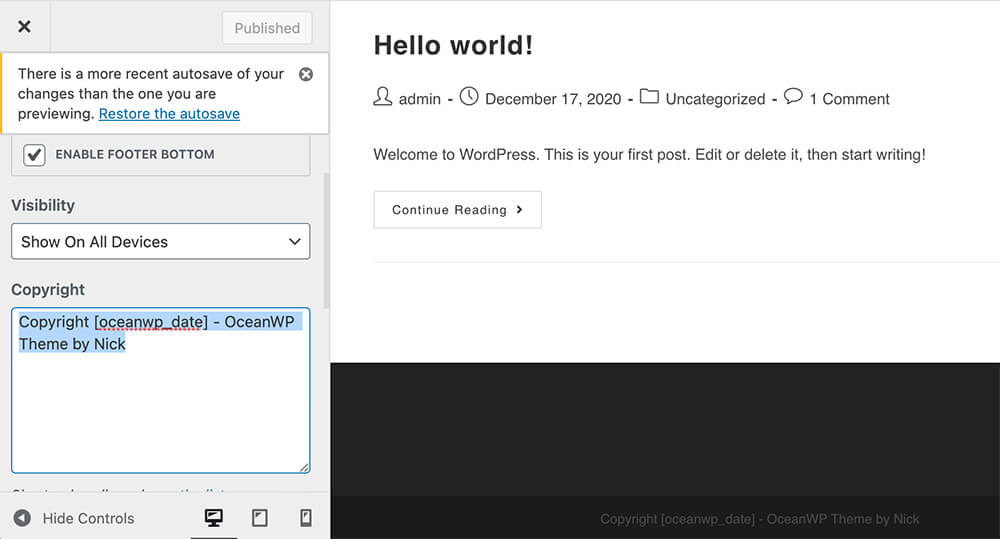
Again, it's most likely that the theme you're using allows you to change the footer text. You'll probably find it in the corresponding tab.
Method #2: Option to edit screen files
If you still haven't been able to find the option, you can do so through the customization screen by modifying the template files.
This method is recommended only for intermediate WordPress users because it requires you to edit the theme's core file.
Before making any changes to the template files, it's essential that you back up your website in case something goes wrong. If something does go wrong, you can always restore your website using the backup file you created.
Note: It's best to use this method in a child theme to avoid losing your changes during the next theme update.
Inspect the item
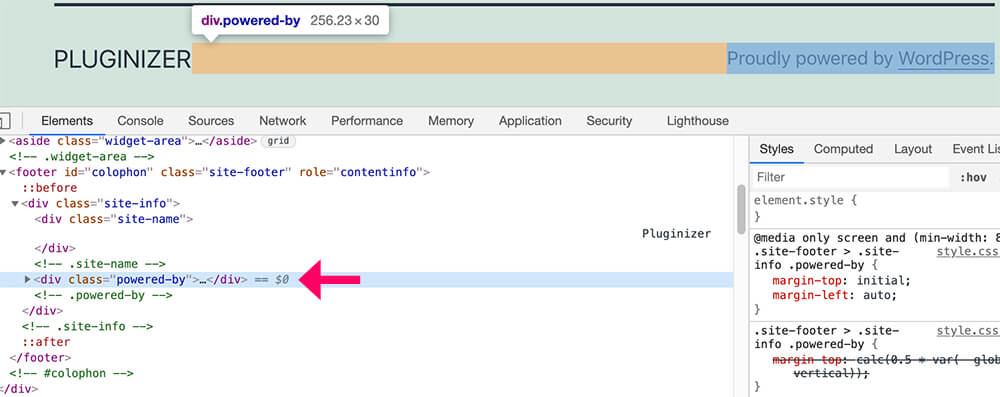
First, you need to find the ID or class of the element Created with WordPress.
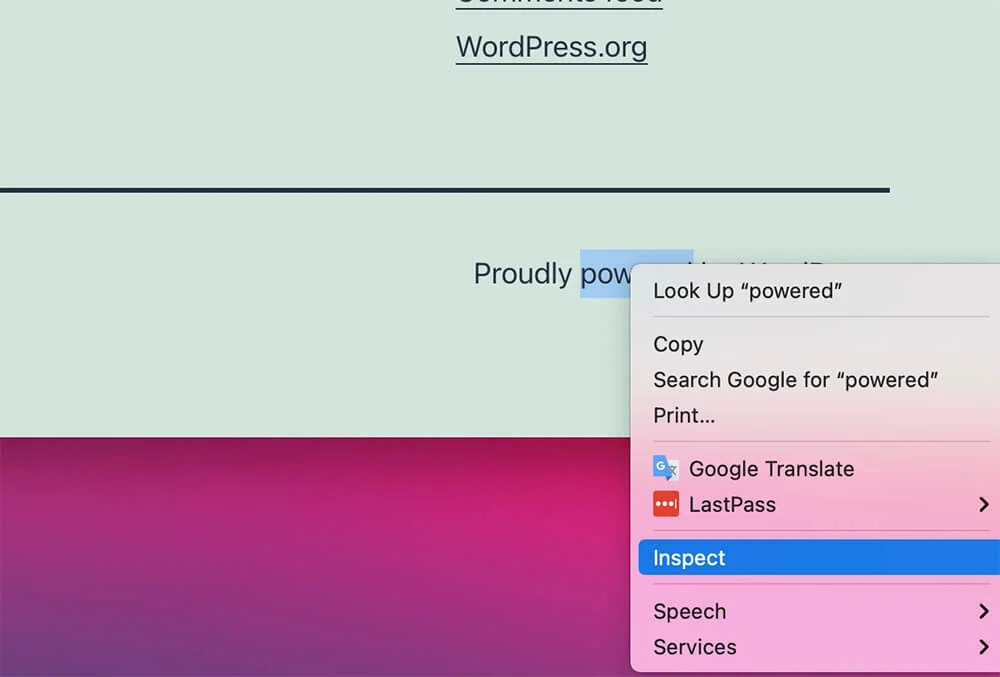
To do this, right-click on this paragraph and click 'Inspect.'
You can see in the console that the text is inside a div with a class of powered by.
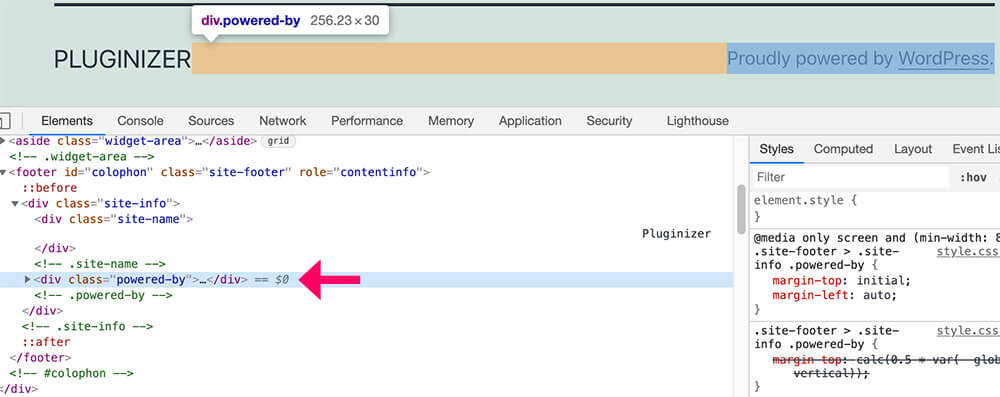
<div class="\"powered-by\"">Once you find a suitable class, you can go ahead and search for it within the footer.php from the file.
Delete the item
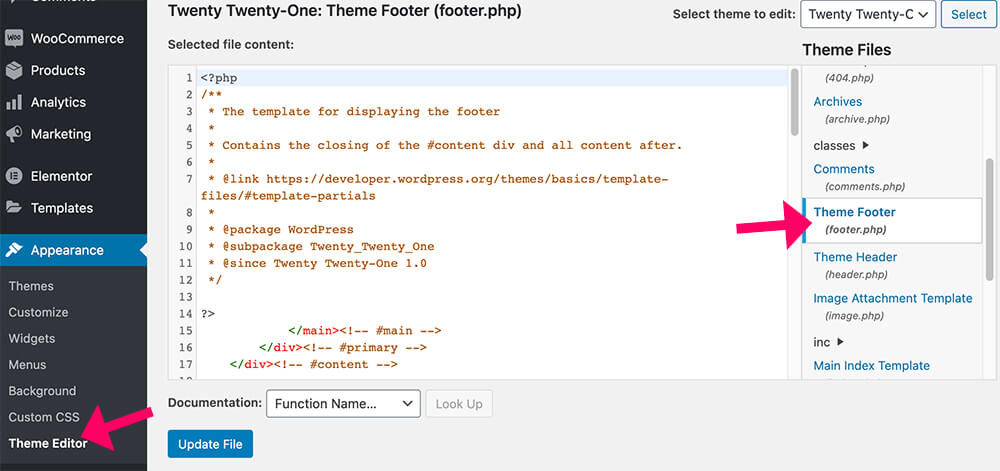
From your WordPress dashboard, navigate to Appearance -> Theme Editor and click the button footer.php from the list on the right.
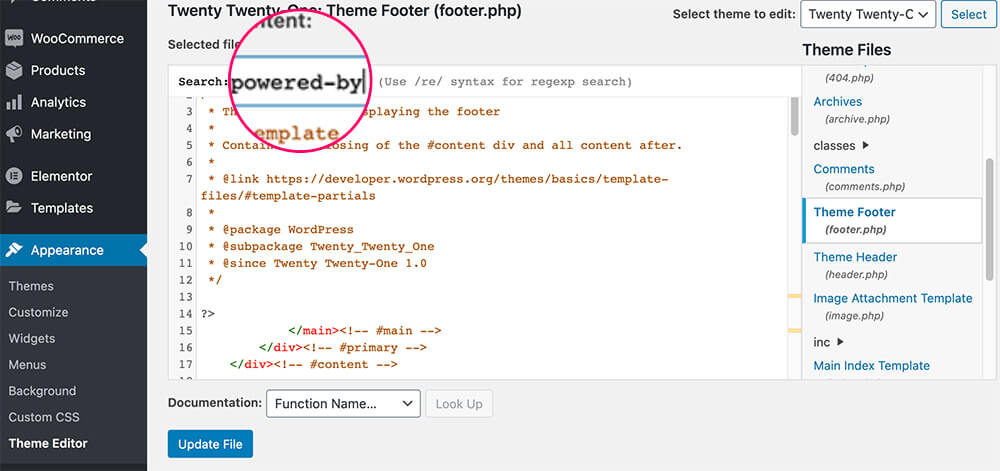
Next, click COMMAND + F (Mac) or CTRL + F (Windows) and search for the class name.
After finding the opening `div` element with the class name "powered-by," click on it to see where the closing `div` is.
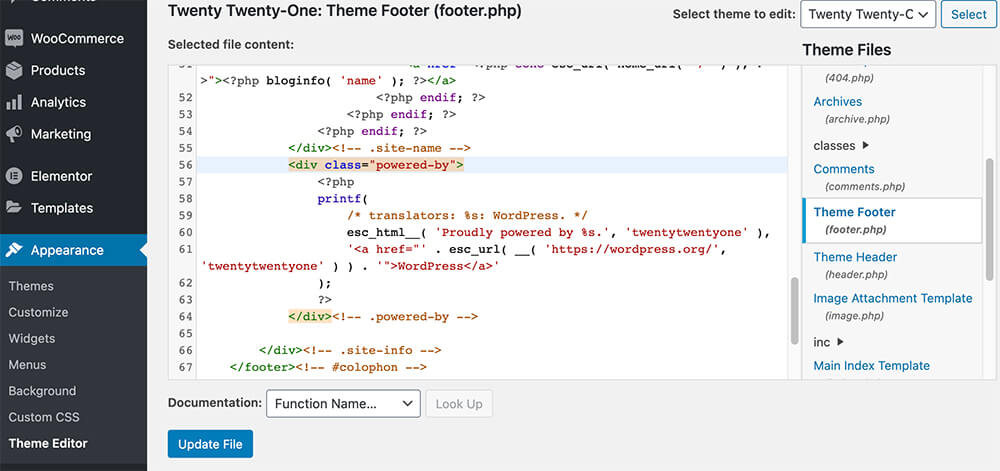
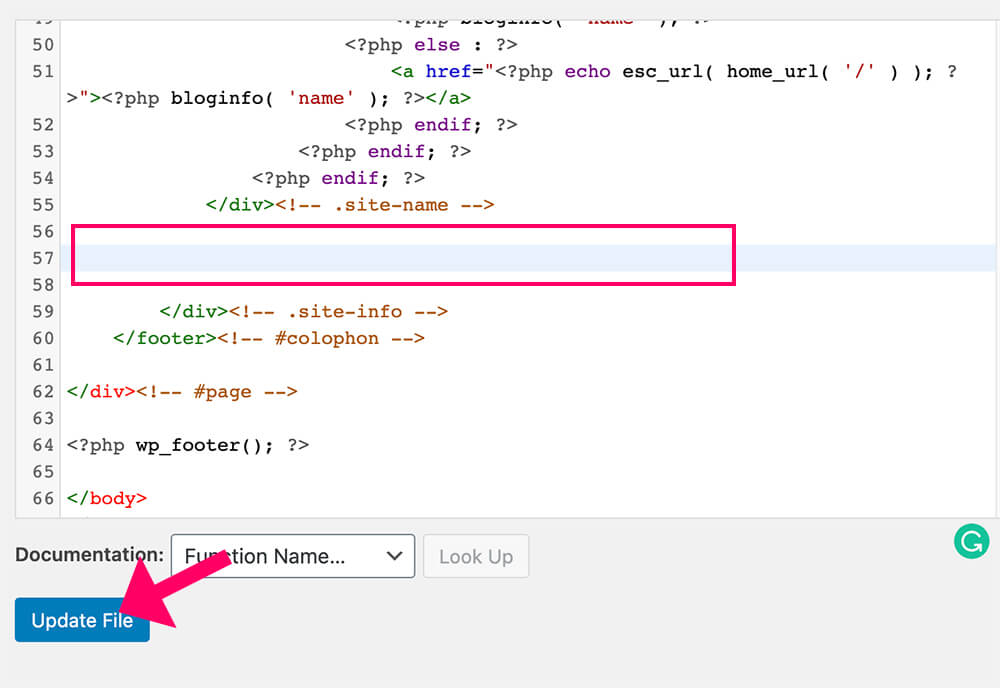
In the Twenty-Twenty-One theme, you can see that the section created with WordPress is on lines 56 (opening div) through 64 (closing div).
First, highlight the relevant lines, and then delete them.
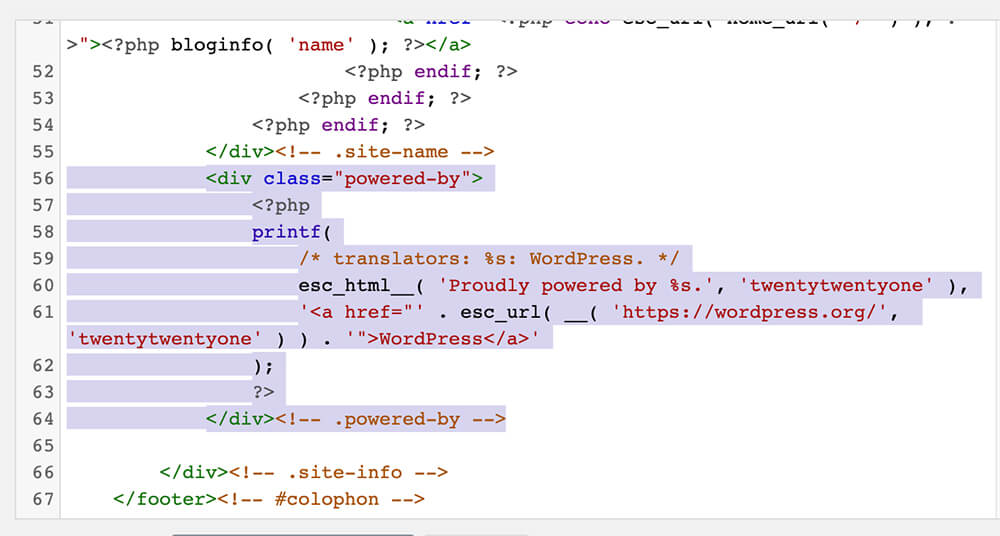
When you're done, click the "Update File" button and revisit your website.
If you don't want to deal with the core files, you can also use CSS to hide the copyright text.
Method #3: Hide Text with CSS
This method is simple, but it is not recommended because it will not delete the text created with WordPress; instead, it will hide it.
In other words, visitors to the website won't see it, but some search engines will.
Search engines may view this practice as an attempt to disguise links with keywords to help you rank higher. Although this is doubtful, we'll discuss it anyway.
To hide text using CSS, follow the first step of the previous method and find the element's ID or class name.
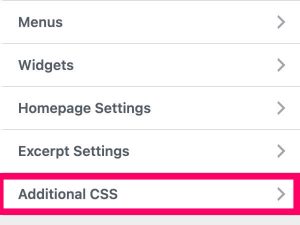
After finding the correct attribute, navigate to Appearance -> Customize -> Additional CSS.
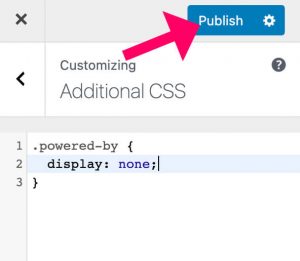
Here, enter the CSS rule shown below:
.class-name-here {
display: none;
}
Be sure to replace the class-name-here by the element's ID or actual class, and click "Publish.".
When referring to a class, use a period (.) before the class name. Use a hashtag (#) before the ID name when referring to an ID.
If you haven't been able to find the correct attribute, please let us know below which theme you're using, and we'll provide you with the appropriate CSS.
Conclusion
In this article, we'll show you how to remove the Created with WordPress from your website's footer in various ways. We hope you find this helpful, and if you have any questions, we're here to help!
You can leave us a comment and tell us which of the three methods you chose to complete this task.
Si quieres conocer otros artículos parecidos a 3 formas de Eliminar el Creado con WordPress del footer de tu sitio web puedes visitar la categoría Ayuda y Soporte.
 Español Español
  English
  Português do Brasil
Leave a Reply