
Check Your WordPress Version - 10 Methods
Want to check your WordPress version? Discover 10 ways to find out your WordPress version in just a few minutes—don't miss it!
WordPress is a free, open-source content management system (CMS) that allows users to create and manage websites easily and efficiently. It was launched in 2003 and is one of the most popular and widely used CMSs worldwide, with more than 60 million active websites running on it.
WordPress offers a wide range of tools and resources to help you create and customize your website, including topics customizable, plugins and widgets. Plus, it's easy to use and integrates with a wide variety of platforms, making it ideal for both beginners and advanced users.
There are several ways to view version of WordPress. The easiest way to determine the version is to access the admin login or the WordPress site files. Can't access the admin login or the files? Don't worry—you can still find the WordPress version even if you don't have access. We’ll go through them one by one, starting with the easiest method and moving on to the most complicated.
View WordPress version:
1. Be able to log in to WordPress
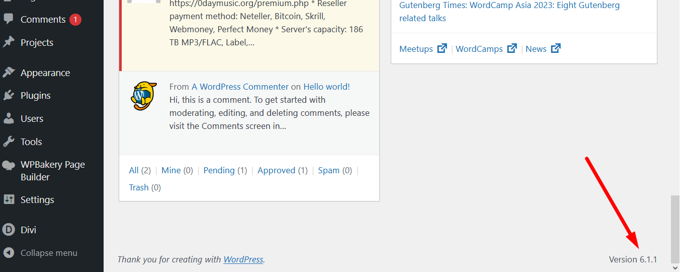
1.1 Lower-right corner
The easiest way is to log in to your WordPress dashboard and scroll down. The WordPress version is displayed in the lower-right corner of each page.
1.2 WordPress Dashboard
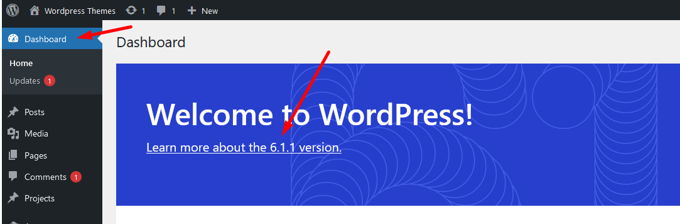
The second method is just as easy. Log in to your WordPress backend, click "Dashboard" in the top menu, and you'll see the WordPress version displayed in the middle of the page.
1.3 At a Glance
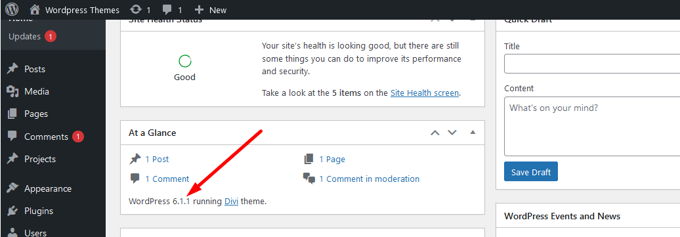
On the same Control Panel page, if you scroll down to the "At a Glance" section, you'll also see the WordPress version listed there.
1.4 Updates Section
You can also go to "Dashboard" > "Updates." Here, you'll be prompted to update if your version is outdated or if you're already using the latest version of WordPress.
However, if you have an older version of the program, you won't be able to see its version number. You'll simply be prompted to refresh the page, and the version number won't be displayed.
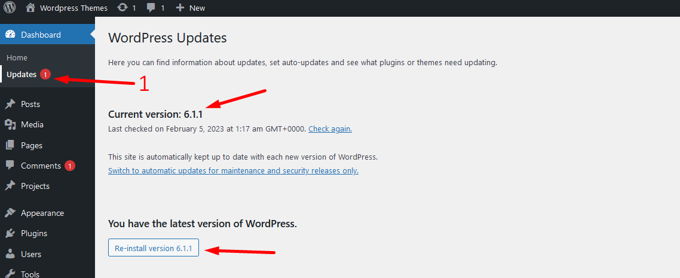
1.5 About WordPress
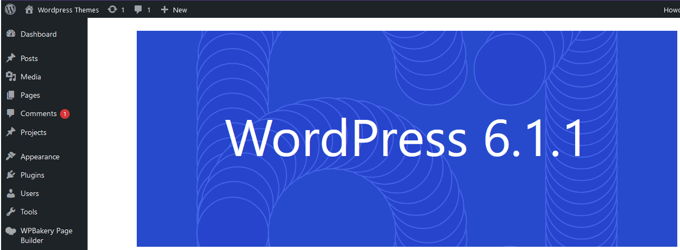
Another page in the WordPress backend that displays the version. In the upper-left corner, hover over the WordPress icon and click the "About WordPress" tab. You'll see the version number displayed in full size on the screen.
2. Be able to access the server or hosting
The following set of options requires access to the website's files. This can be done using FTP or a file manager (recommended).
2.1 The version.php file
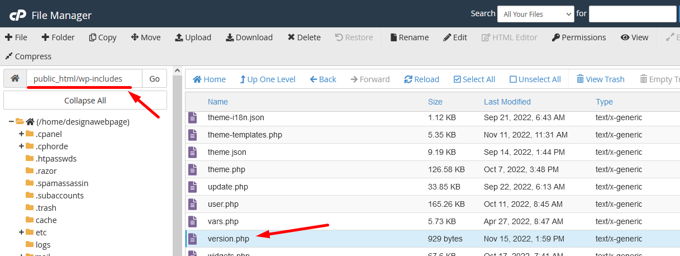
Once you're connected to your server's files, you can find the version.php file in the home/public_html/wp-includes/ directory.
Right-click the file and select "Edit" or "View." The contents of this file include the variable $wp_version. Scroll down until you see it, or you can use the search function again by pressing Ctrl+F.
If you find the right line, you'll see that the number on the right is the WordPress version number.
3. Without logging in and without access to the server, viewing the website's front end
3.1 Source Code
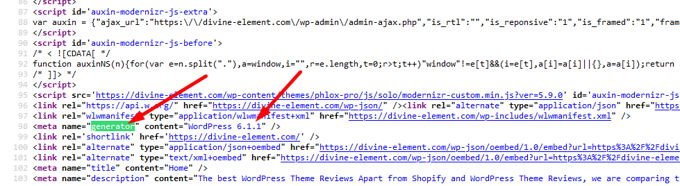
Just go to your website's home page or any other WordPress website and press "CTRL+U," which will open a new page displaying all the source code.
Now type "CTRL+F" to open the search box. Let's search for "generator." In the screenshot below, you can see that we found it right away. If "generator" doesn't return any results, try "ver=.".
Always make sure that the version number of a theme or plugin doesn't appear. Find out what the actual version of WordPress is; most likely, the version will be exactly that or close to it.
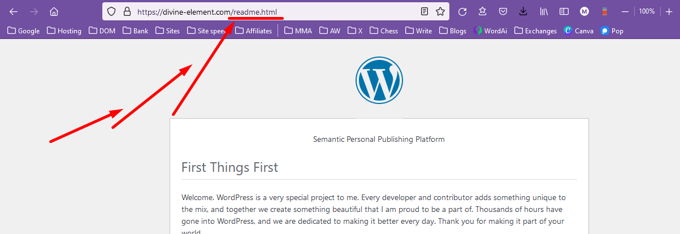
3.2 /readme.html at the end of the domain name
An alternative method that works well with older versions of WordPress is to add "/readme.html" to the end of your URL. This will display the current version of WordPress, but it only applies to outdated websites. Newer versions will display the page, but not the WordPress version.
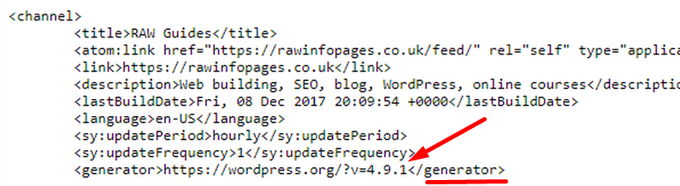
3.3 /feed/ at the end of the domain name
RSS feeds are the latest and best way to view the version. Add /feed/ to the end of any site's URL. To use the search function, press Ctrl+F and enter "generator." It will appear at the top of your page. This is where you'll find the WordPress version number.
4. Using SSH
4.1 SSH Commands (for experts only)
If you have experience with SSH and also have root access, you can retrieve the version number with a few simple commands. Start by entering the following command to navigate to the correct folder.
cd htmlNext, use the following command to retrieve your WordPress version number.
WP Core versionWhy is it a good idea to keep WordPress updated to the latest version?
It's a good idea to keep WordPress up to date for several reasons:
- Security improvements: WordPress updates include security fixes to protect your website from potential vulnerabilities.
- New Features: New versions of WordPress include new features and improvements that can enhance the user experience and increase your website's efficiency.
- Compatibility: By keeping your website up to date, you can be sure that the plugins and themes you use will be compatible with the latest version of WordPress.
- Performance: WordPress updates often include performance improvements that can make your website faster and more efficient.
In short, keeping your version of WordPress up to date is important for ensuring the security, compatibility, and performance of your website.
It's important to regularly check for available updates and keep your website up to date to ensure you have the latest features and security fixes.
Si quieres conocer otros artículos parecidos a Ver versión de WordPress - 10 Métodos puedes visitar la categoría Ayuda y Soporte.
 Español Español
  English
  Português do Brasil
Leave a Reply